
A form should explain what each field means even after someone has typed into it. Use persistent labels, connect them to their controls and give grouped choices a shared question. Placeholder text cannot do those jobs on its own.
The example below previews data inside the page. It has no email delivery or backend. Save it as contact-labels.html and use fictitious details while testing.
Build a complete local form
<!doctype html>
<html lang="en">
<head>
  <meta charset="utf-8">
  <meta name="viewport" content="width=device-width, initial-scale=1">
  <title>Labels that activate their controls</title>
  <style>
    * { box-sizing: border-box; }
    body {
      margin: 0;
      padding: 16px;
      font: 1rem/1.6 system-ui, sans-serif;
      color: #080b0e;
      background: #ffffff;
    }
    main { max-width: 60rem; margin-inline: auto; }
    form { max-width: 34rem; }
    .field { display: grid; gap: 6px; margin-block: 16px; }
    input, textarea, button { font: inherit; }
    .field input, textarea { width: 100%; min-width: 0; padding: 10px; }
    fieldset { min-width: 0; margin: 0; border: 1px solid #626976; }
    fieldset label { display: block; }
    :is(input, textarea, button):focus-visible { outline: 3px solid #034bff; outline-offset: 3px; }
    #preview { overflow-wrap: anywhere; }
  </style>
</head>
<body>
  <main>
    <h1>Preview a contact request locally</h1>
    <p>Use fictitious details. This example does not send a message.</p>
    <form id="contact-form">
      <div class="field">
        <label for="full-name">Full name</label>
        <input id="full-name" name="full_name" autocomplete="name" required>
      </div>
      <div class="field">
        <label for="email">Email address</label>
        <input id="email" name="email" type="email" autocomplete="email" required>
      </div>
      <fieldset>
        <legend>What is the request about?</legend>
        <label for="topic-website"><input id="topic-website" type="radio"
          name="topic" value="website" checked> Website</label>
        <label for="topic-software"><input id="topic-software" type="radio"
          name="topic" value="software"> Software</label>
      </fieldset>
      <div class="field">
        <label for="message">How can we help?</label>
        <textarea id="message" name="message" rows="4" required></textarea>
      </div>
      <button type="submit">Preview request</button>
      <p id="preview" role="status"></p>
    </form>
  </main>
  <script>
    document.querySelector('#contact-form').addEventListener('submit', event => {
      event.preventDefault();
      const values = Object.fromEntries(new FormData(event.currentTarget));
      document.querySelector('#preview').textContent =
        'Local preview only: ' + JSON.stringify(values);
    });
  </script>
</body>
</html>
The script prevents navigation when a valid form reaches the submit event and displays its FormData locally. It is included so you can inspect the field names. A real contact service needs a deliberate endpoint and server-side processing; placing a form on a page does not deliver messages automatically.
Activate every label
- Click “Full name”. The corresponding text input should receive focus.
- Click “Email address” and “How can we help?”. Each should target its own control.
- Click the word “Software”. Its radio button should become selected and Website should become unselected.
- Tab through the form. Use the arrow keys while the radio group has focus to change its selection.
The text labels' for attributes match the inputs' IDs exactly. The radio labels use that relationship too. Their controls share name="topic", so they form one choice group; their different values identify which choice is selected. The fieldset and legend supply the question for that group.
Separate the ID from the submitted name
Fill the required fields with a fictitious name, reader@example.com and a short sample message. Submit. The preview should contain full_name, email, topic and message.
The ID connects labels and document references. The name supplies a key in the form data. A field can focus correctly from its label and still be absent from FormData if its name is missing. Disabled controls are also excluded from ordinary form submission data.
Check native validation
Reload and submit the empty form. The browser should identify a required field before the submit handler runs. Fill the name but leave an incomplete email value and repeat. The native email check verifies a basic syntax pattern, not ownership or deliverability.
If a click seems to do nothing, look for the focused invalid control and the browser's validation message. Do not add novalidate merely to silence that feedback unless you are replacing it with a complete, accessible validation flow.
Use the screenshot as a reference
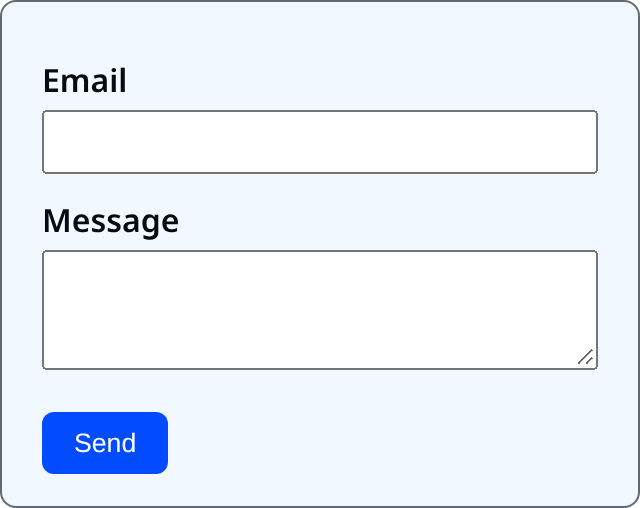
The reference screenshot illustrates labelled controls; the complete example adds a name, grouped topic choice and a local preview. Check your own page at a narrow width. Long labels should wrap without separating the meaning from the field, and the textarea must stay inside the form.
Diagnose a label that targets the wrong field
Compare for and id character by character. Then search the document for a duplicate ID, especially if the form was copied. A placeholder cannot repair a broken relationship. Keep the visible label even when browser autofill or a mobile keyboard is available.
Remove one name as an experiment
Temporarily remove the email control's name, leaving its ID and label unchanged. Submit a valid sample.
Expected result: the label still focuses the email input and validation still checks it, but the preview has no email key. Restore the name before continuing. For custom feedback with preserved values, read the error-state walkthrough.
About
Build a local form with working labels and a grouped topic choice, then inspect submitted field names without sending a message.
Reviews
Sign in to write a reviewComments (0)
Sign in to commentNo comments yet.