
Skip ahead: If you are already at a psql prompt and only need the commands for listing things, skip to "Step 3: list what is there", then continue.
You are connected to a PostgreSQL server and want to know what is in it: which databases, which tables, which columns. psql answers with short backslash commands. This page is a ten-minute tour, in the order you will need them.
Step 1: connect to a database
In the Docker setup from the install tutorial, run:
docker exec -it shop-pg psql -U postgres -d shop
-U postgres is the user and -d shop is the database. Leave -d out and psql connects to a database with the same name as the user, which is postgres here. If shop does not exist you get FATAL: database "shop" does not exist. Create it with docker exec -it shop-pg psql -U postgres -c "CREATE DATABASE shop".
If PostgreSQL runs on your own machine or on another server, the same connection looks like this:
psql -h localhost -p 5432 -U postgres -d shop
or as one connection string:
psql "postgresql://postgres@localhost:5432/shop"
psql asks for the password if the server needs one. Never put a real password on the command line, because the shell keeps a history.
Step 2: make something to look at
An empty database has nothing to list. Paste this to make two small tables.
CREATE TABLE customers (
  customer_id integer GENERATED ALWAYS AS IDENTITY PRIMARY KEY,
  name        text NOT NULL,
  email       text NOT NULL UNIQUE
);
CREATE TABLE orders (
  order_id    integer GENERATED ALWAYS AS IDENTITY PRIMARY KEY,
  customer_id integer NOT NULL,
  status      text NOT NULL DEFAULT 'new'
);
CREATE TABLE
CREATE TABLE
Step 3: list what is there
\dt lists the tables in the current database.
\dt
            List of tables
 Schema |   Name    | Type  |  Owner
--------+-----------+-------+----------
 public | customers | table | postgres
 public | orders    | table | postgres
(2 rows)
\d customers shows one table's columns, types and keys.
\d customers
                          Table "public.customers"
   Column    |  Type   | Collation | Nullable |           Default
-------------+---------+-----------+----------+------------------------------
 customer_id | integer |           | not null | generated always as identity
 name        | text    |           | not null |
 email       | text    |           | not null |
Indexes:
    "customers_pkey" PRIMARY KEY, btree (customer_id)
    "customers_email_key" UNIQUE CONSTRAINT, btree (email)
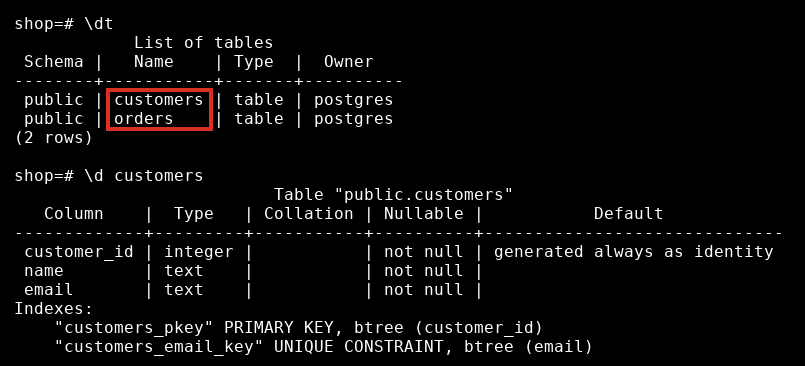
The red box marks the two table names in the list.
Here are the commands you will use most. None of them needs a semicolon.
| Command | What it does |
|---|---|
\l | List databases. |
\c name | Connect to another database. |
\dt | List tables in the current schema. |
\d table | Describe one table. |
\dn | List schemas. |
\conninfo | Show who and where you are connected as. |
\? | List every psql command. |
\q | Quit. |
💡 Tip: If a table you created is not in the list, check which database the prompt says you are in. shop=# means the shop database. A table made in postgres=# lives in a different one.
If something does not work
\dtprints "Did not find any relations." You are in an empty database, or you are connected to the wrong one. Run\conninfoand compare.- "Connection refused". The server is not running, or the host and port are wrong. For the container,
docker psshows whether it is up. - "password authentication failed". The password is wrong. For the scratch container, connect with
docker execas shown, which needs none.
Related course: SQL for Beginners.
About
Connect to a database with psql and use the backslash commands to list tables and columns. After this, you can see what is inside any database you can reach.
Reviews
Sign in to write a reviewComments (0)
Sign in to commentNo comments yet.