

Images With alt Text That Isn't Useless
Choose different text alternatives for informative, decorative and linked images, then inspect their names and broken-image behavior.
Write an image's alternative from the information or action the reader needs in that location. Describing every visible shape is not always useful. A decorative divider needs no announcement; an image-only link needs a name that explains its destination.
This walkthrough uses original SVG teaching assets so the result is easy to inspect. Save package-label.svg and divider.svg into the same folder as the example below.

Run three image purposes
Save this file as image-alternatives.html beside the two images, then open it.
<!doctype html>
<html lang="en">
<head>
  <meta charset="utf-8">
  <meta name="viewport" content="width=device-width, initial-scale=1">
  <title>Choose an image alternative from its purpose</title>
  <style>
    * { box-sizing: border-box; }
    body {
      margin: 0;
      padding: 16px;
      font: 1rem/1.6 system-ui, sans-serif;
      color: #080b0e;
      background: #ffffff;
    }
    main { max-width: 60rem; margin-inline: auto; }
    img { display: block; max-width: 100%; height: auto; }
    figure { margin: 24px 0; }
    .divider { width: 240px; margin-block: 24px; }
    .image-link { display: inline-block; max-width: 100%; }
    .image-link img { width: 240px; }
    .image-link:focus-visible { outline: 3px solid #034bff; outline-offset: 4px; }
  </style>
</head>
<body>
  <main>
    <h1>Read the picture's job before writing alt text</h1>
    <figure>
      <img src="package-label.svg" width="640" height="400"
           alt="Collect the parcel from aisle B, bin 14.">
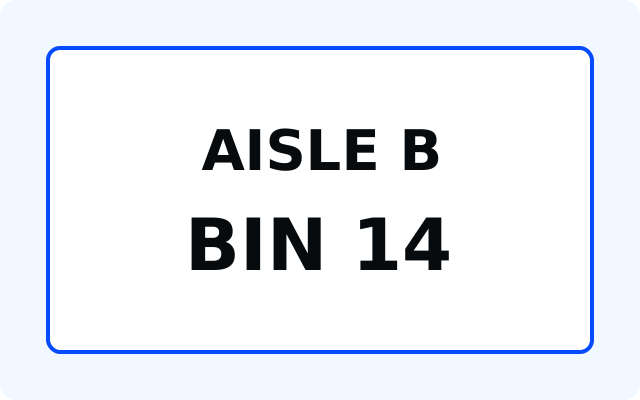
      <figcaption>A warehouse collection label.</figcaption>
    </figure>
    <img class="divider" src="divider.svg" width="240" height="24" alt="">
    <p>The next picture is also a link to storage locations.</p>
    <a class="image-link" href="#storage">
      <img src="package-label.svg" width="640" height="400" alt="Storage locations">
    </a>
    <h2 id="storage">Storage locations</h2>
    <p>The example label identifies aisle B and bin 14.</p>
  </main>

</body>
</html>
You should see a label identifying aisle B and bin 14, a small divider, then a smaller copy of the label that acts as a link. All images fit their available width while preserving their source proportions.
Keep the useful information in the alternative
The first image carries a collection instruction. Its alternative preserves the location someone needs: aisle B, bin 14. A description such as “blue rectangle” or “label picture” would leave that task unfinished.
The caption identifies the kind of object. It does not repeat every location detail, so it is not a reason to empty the image's alternative. If nearby prose already provides the full equivalent, decide whether repeating it helps or merely duplicates the same information. A caption's presence alone does not make an informative image decorative.
Leave decoration silent
The divider has alt="". It is presentational spacing and decoration; the reader does not need a description of its line or circles. Empty alt is deliberate. Omitting the attribute is different and can lead some assistive technology to expose a filename or other unhelpful information.
If that decorative image is later used to communicate a status, its purpose has changed. Revisit the alternative instead of assuming every copy of the same asset must use the same text forever.
Name the destination of an image-only link
The smaller image is the only content inside a link. Its alternative supplies the link name, “Storage locations”. Tab to it and activate it: the page should move to that section. Empty alt here would leave a link without an informative name.
If the same link also had visible text saying “Storage locations”, an empty alternative on its redundant icon could avoid repeating that phrase. The important unit is the complete link's accessible name and purpose, not the filename in isolation.
Inspect what the browser exposes
- Select the first image in the browser's accessibility tools. Check its image role and collection-instruction name.
- Inspect the divider. It should not appear as a separately named informative image.
- Inspect the image link. Check that its name describes the destination.
- Rename the label file temporarily and reload. Compare the broken-image fallback, then restore the file.
Broken-image rendering varies by browser and available space, so it is not a substitute for testing the accessibility tree or a screen reader. Width and height attributes give the browser a ratio before loading; they do not supply missing information when the file is unavailable.
Change the label's job
Imagine the first image now teaches how to distinguish aisle labels from bin labels. Rewrite its alternative for that lesson, and provide any longer explanation in nearby text.
Expected result: the alternative explains the distinction needed for the new task. The divider remains silent and the navigation image still names its destination. See WAI's image tutorial for purpose-based guidance, or continue to responsive image sizing.
About
Choose different text alternatives for informative, decorative and linked images, then inspect their names and broken-image behavior.
- Responsible
- Mary Q
- Last Update
- 08/23/2026
- Reading Time
- 5 min
Reviews
Sign in to write a reviewComments (0)
Sign in to commentNo comments yet.