
Find and reply to a ticket
- Sign in and open Helpdesk.
- Use the available search and status filters to find your ticket.
- Open the ticket and read the conversation available to your account.
- If a reply form is available, add the information requested by the team or explain what changed.
- Follow the displayed file limits if adding attachments, then submit and check for confirmation.
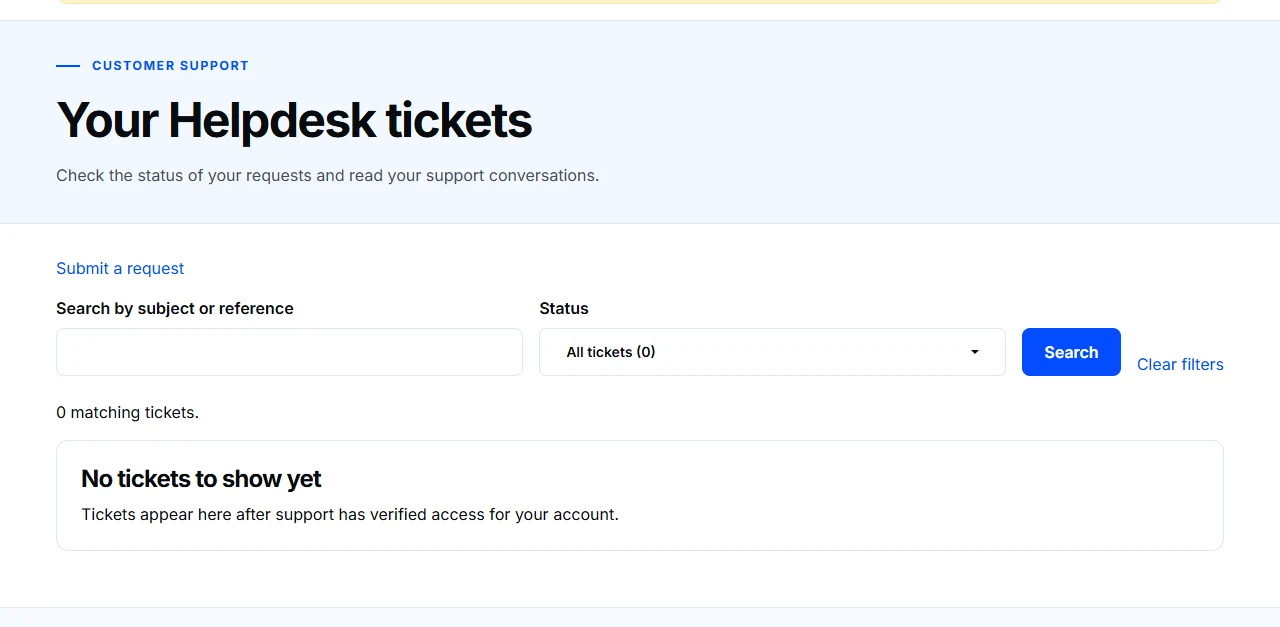
If a ticket is missing
Check that you used the correct account and filters. Access belongs to the account authorized for that ticket. A shared company, matching email address, forwarded message, or ticket reference does not give another account access.
Newly created accounts do not automatically receive older tickets. If you believe you should have access, contact us so the team can review it.
If a reply or file is unavailable
The portal shows the customer conversation and files available to your account. It does not expose internal notes or every historical message. Ask the support team if an expected reply or attachment is missing. Keep follow-up information in the existing ticket rather than starting a duplicate request.