
Resource Limits, Restart Policies and Healthchecks
Trigger an out-of-memory kill, cap CPU, watch a restart policy give up and a health check turn unhealthy without a restart. After this, you can tell which of the three tools solves which problem.
Skip ahead: If you already set memory and CPU limits, a restart policy and a health check on every long-running container, skip to "A health check does not restart anything", the part most people get wrong.
A container with no limits can use all the memory and CPU the host has. On your laptop that means a slow afternoon. On a server running five services, it means one leaking service takes the other four down with it. Limits, restart policies and health checks are three different tools, and people mix them up. Limits stop one container from hurting the others. A restart policy decides what happens after a crash. A health check tells you if a running container is actually working. None of them does the job of another.
I ran everything on Docker Desktop 4.85.0 with Engine 29.6.2, using alpine:3.24 and python:3.14-alpine.
Memory limits and exit code 137
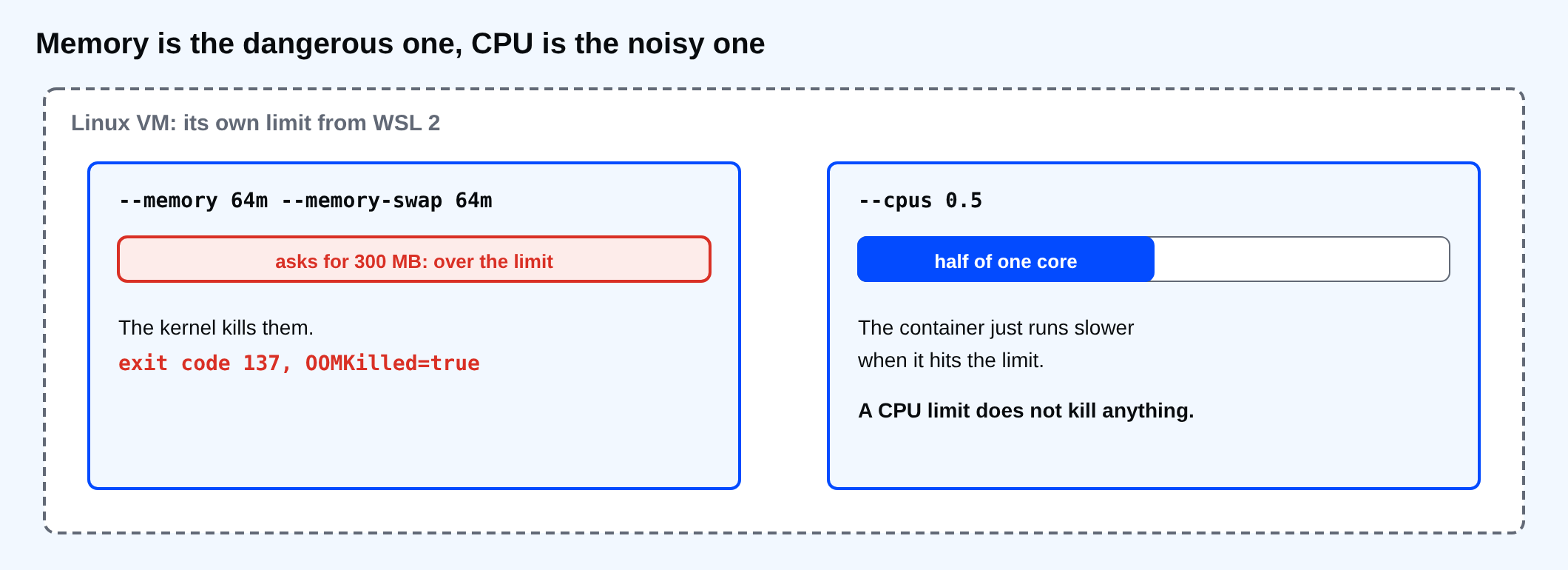
--memory is a hard ceiling. If the processes in the container go over it, the kernel kills them. Here a Python one-liner asks for 300 MB in a container limited to 64 MB:
docker run --name mem-hog --memory 64m --memory-swap 64m python:3.14-alpine python -c "x = bytearray(300 * 1024 * 1024)"
"exit code $LASTEXITCODE"
docker inspect mem-hog --format "OOMKilled={{.State.OOMKilled}} ExitCode={{.State.ExitCode}}"
exit code 137
OOMKilled=true ExitCode=137
No Python error, no message, just exit code 137. That number is 128 plus 9, the KILL signal, and OOMKilled=true confirms the reason. If a container keeps exiting with 137 and the logs end in the middle of a line, check this first.
--memory-swap set to the same value as --memory means "no swap on top". Without it, the container may get swap equal to the memory limit as well, and a leak gets slow before it gets killed. Slow is usually worse.
Seeing the limits
docker stats shows usage against the limit. --no-stream prints one sample and exits.
docker run -d --name cpu-capped --memory 128m --cpus 0.5 alpine:3.24 sleep 300 | Out-Null
docker stats cpu-capped --no-stream --format "{{.Name}}: memory limit {{.MemUsage}}"
docker inspect cpu-capped --format "Memory={{.HostConfig.Memory}} NanoCpus={{.HostConfig.NanoCpus}}"
memory limit
Memory=134217728 NanoCpus=500000000
--cpus 0.5 means half of one CPU core over time, stored as 500 million "nano CPUs". A CPU limit does not kill anything. The container just runs slower when it hits the limit. Memory is the dangerous one, CPU is the noisy one.
⚠ Warning: Setting a memory limit lower than the app needs does not make it use less memory. It makes it die. Measure first with docker stats under a normal load, then set the limit with some room above that.
On Docker Desktop, these limits sit inside the Linux VM, which has its own limit from WSL 2. If the VM itself runs out, every container suffers at once. That is one reason the last lesson of this course talks about where Docker Desktop stops being the right tool.
Restart policies
A restart policy tells the Docker engine what to do when the main process exits. The options are no (the default), on-failure[:max-retries], always and unless-stopped. Here a container fails on purpose and is allowed three retries:
docker run -d --name crashy --restart on-failure:3 alpine:3.24 sh -c "echo starting; exit 1" | Out-Null
Start-Sleep -Seconds 8
docker inspect crashy --format "Status={{.State.Status}} RestartCount={{.RestartCount}} ExitCode={{.State.ExitCode}}"
docker logs crashy
Status=exited RestartCount=3 ExitCode=1
starting
starting
starting
starting
The container ran four times: the first start and three restarts. Then Docker gave up and left it exited. Docker waits a little longer between each restart (it starts at 100 ms and doubles), so a crash loop does not burn the CPU.
Which policy to use:
on-failure:Nfor things that may fail for a moment, like a worker that starts before the database is ready. The limit stops an endless loop.unless-stoppedfor services that should come back after a reboot or a Docker Desktop restart, but stay down if you stopped them yourself.alwaysrestarts even after you stop it by hand, once the engine restarts. That surprises people, so I preferunless-stopped.
A restart policy is not a fix. If a container restarts every few minutes, something is wrong, and the policy is hiding it. Watch the RestartCount.
Health checks
A process can be running and still be useless: stuck, out of database connections, returning errors. A health check is a command Docker runs inside the container on a schedule. Exit code 0 means healthy, anything else counts as a failure. After retries failures in a row, the container is marked unhealthy.
This container is healthy only while the file /tmp/ok exists. I create it at start and delete it a few seconds later:
docker run -d --name hc-file-demo --health-cmd "test -f /tmp/ok" --health-interval 1s --health-retries 2 --health-start-period 0s alpine:3.24 sh -c "touch /tmp/ok; sleep 4; rm /tmp/ok; sleep 300" | Out-Null
Start-Sleep -Seconds 2
docker inspect hc-file-demo --format "after 2s: {{.State.Health.Status}}"
Start-Sleep -Seconds 6
docker inspect hc-file-demo --format "after 8s: {{.State.Health.Status}}, running={{.State.Running}}"
after 2s: healthy
after 8s: unhealthy, running=true
A health check does not restart anything
Look at the last line again: unhealthy, and still running=true. Plain Docker and Compose mark the container unhealthy and do nothing else. No restart, no alert. Swarm and Kubernetes act on health, but a container started with docker run or docker compose up does not. The restart policy reacts to exits, not to health.
So what is the health status good for on one host?
- Compose
depends_onwithcondition: service_healthy, so services start in the right order. The Intermediate course covers this. docker compose up --wait, which fails a deployment if a service never becomes healthy. The rolling lesson later in this course uses it.- Your monitoring, which can read the status from
docker psor the API.
If you want an unhealthy app to restart, make the app exit when it is broken, and let the restart policy bring it back.
All three in Compose
services:
  api:
    image: python:3.14-alpine
    restart: unless-stopped
    mem_limit: 256m
    memswap_limit: 256m
    cpus: 0.5
    healthcheck:
      test: ["CMD", "python", "-c", "import urllib.request; urllib.request.urlopen('http://127.0.0.1:8000/health')"]
      interval: 10s
      timeout: 3s
      retries: 3
      start_period: 20s
deploy.resources.limits works too and is what Swarm reads. On a single host either form is fine; pick one and use it everywhere.
Common mistakes
- A health check that calls
curlin an image withoutcurl. It fails forever and the container is always unhealthy. Use a tool that is in the image. - No
start_periodfor slow starters, so the container is unhealthy before it ever had a chance. restart: alwayson a one-off job. It runs again and again.
💡 Tip: When a container dies, run docker inspect NAME --format "{{.State.ExitCode}} {{.State.OOMKilled}}" before reading any logs. 137 with true is memory. 137 with false is usually someone or something sending a kill.
If your busiest container leaked memory tonight, which would happen first: it hits its own limit and restarts, or the host runs out and takes everything with it?
About
Trigger an out-of-memory kill, cap CPU, watch a restart policy give up and a health check turn unhealthy without a restart. After this, you can tell which of the three tools solves which problem.
Comments (0)
Sign in to commentNo comments yet.