
Bind Mounts vs Named Volumes: Which One When
Compare the two on what is inside at the start, where the files live, speed on Windows and backups, with commands you can run. After this, you can choose a mount type for a project and back up a volume.
Skip ahead: If you already pick between a bind mount and a named volume without thinking, skip to "Back up a volume", then go on to the next lesson.
You met both kinds of mount in the first course. Named volumes keep data safe from you, and bind mounts keep it close to you. That is a good rule to start with, but real projects need more than a rule: what is inside the folder at the start, where the files physically live, how fast they are, and how you back them up. This lesson compares the two on those points, with commands you can run.
Both syntaxes do the same job
-v is the short form, with fields separated by colons. --mount is the long form, with named options. Everything below works with either one.
docker volume create seed-vol
docker run --rm -v seed-vol:/usr/share/nginx/html nginx:1.30-alpine ls /usr/share/nginx/html
docker run --rm --mount type=volume,source=seed-vol,target=/usr/share/nginx/html nginx:1.30-alpine ls /usr/share/nginx/html
seed-vol
50x.html
index.html
50x.html
index.html
I prefer --mount in anything I keep, because type=volume or type=bind is written out and a typo gives an error. -v guesses: a name becomes a volume, a path becomes a bind mount. Short is fine for a one-off.
What is in the folder at the start
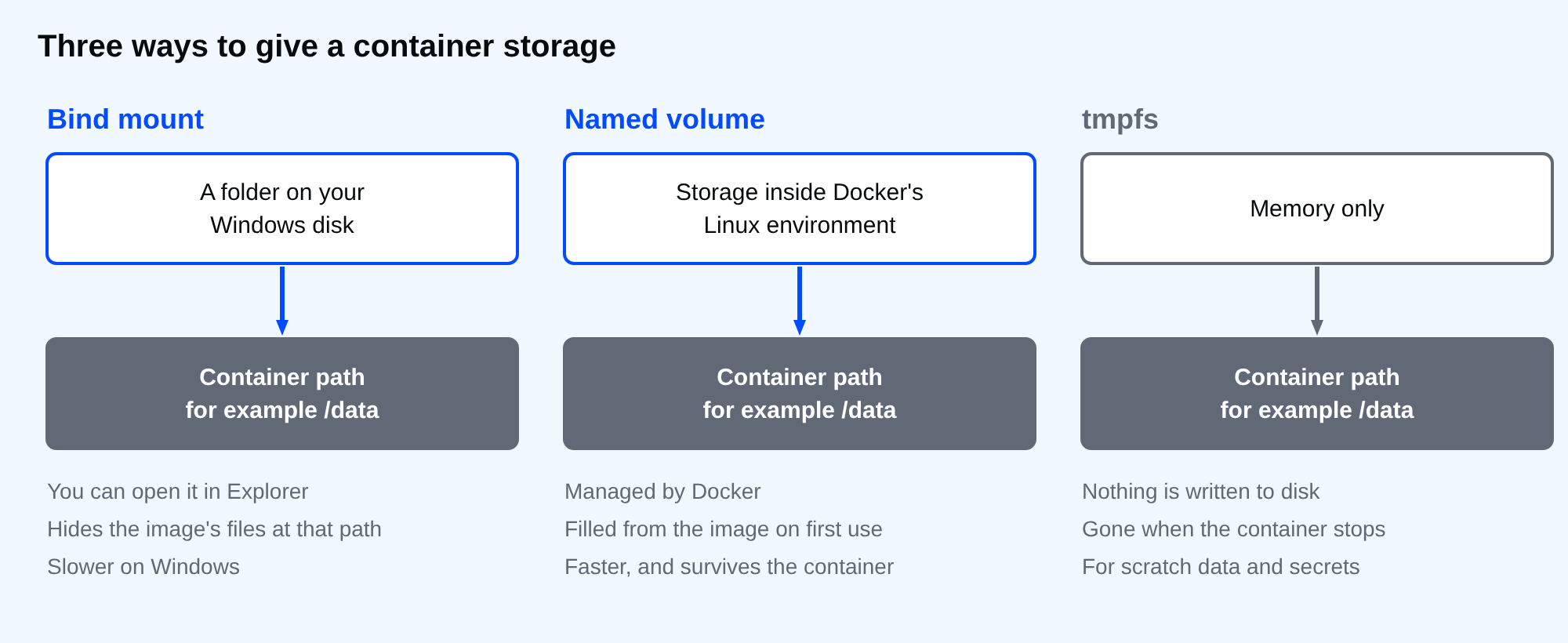
This is the difference people miss. A new, empty named volume is filled with the files the image already has at that path. A bind mount is never filled. It shows the folder you gave it, empty or not, and hides whatever the image had there.
The volume above was brand new, and the listing shows nginx's own web files, copied in on first use. Now the same path with an empty folder from your computer.
New-Item -ItemType Directory -Force empty-dir | Out-Null
docker run --rm -v "${PWD}/empty-dir:/usr/share/nginx/html" nginx:1.30-alpine ls -A /usr/share/nginx/html
"(end of listing)"
(end of listing)
Nothing. nginx would now serve an empty folder and answer 404 for every page. This is why "I added a mount and my app lost its files" is such a common report. The copy-in happens only once, when the volume is still empty. After that the volume's content wins, even if you later ship a newer image with different files at that path.
Where the files live
A bind mount is a folder you can open in Explorer. A named volume is not: it lives inside Docker's Linux environment, in a folder that Docker manages.
docker volume inspect --format "{{.Driver}} {{.Mountpoint}}" seed-vol
local /var/lib/docker/volumes/seed-vol/_data
That path exists inside Docker's Linux environment, not on your Windows disk. You normally do not open it. If you want to look at a volume's files, mount it in a throwaway container, as the listing above did.
Speed on Windows
With Docker Desktop on Windows, a bind mount of a Windows folder crosses from Linux into the Windows file system on every file operation. A named volume stays on the Linux side. For many small files, such as node_modules or a database, the difference is large. This test writes 2,000 small files into each and times the whole docker run.
$cmd = 'cd /data && i=0; while [ $i -lt 2000 ]; do echo x > f$i; i=$((i+1)); done; ls | wc -l'
New-Item -ItemType Directory -Force speed-dir | Out-Null
"volume: " + [math]::Round((Measure-Command { docker run --rm -v speed-vol:/data alpine:3.24 sh -c $cmd | Out-Null }).TotalSeconds, 1) + " s"
"bind:   " + [math]::Round((Measure-Command { docker run --rm -v "${PWD}/speed-dir:/data" alpine:3.24 sh -c $cmd | Out-Null }).TotalSeconds, 1) + " s"
volume: 0.7 s
bind:   5 s
In my run the volume took about 0.7 seconds and the bind mount about 5, roughly seven times longer. Your numbers will be different, because they depend on the disk, antivirus and Docker's version. The direction is what to take from it. Put code you edit in a bind mount, and put anything that writes a lot, like a database or a dependency folder, in a named volume.
Back up a volume
A named volume has no folder to copy, so use a throwaway container that mounts the volume and your current folder at once, and let tar do the work.
docker run --rm -v seed-vol:/data -v "${PWD}:/backup" alpine:3.24 tar czf /backup/html-backup.tgz -C /data .
docker volume create restored-vol | Out-Null
docker run --rm -v restored-vol:/data -v "${PWD}:/backup" alpine:3.24 tar xzf /backup/html-backup.tgz -C /data
docker run --rm -v restored-vol:/data alpine:3.24 ls /data
50x.html
index.html
The archive is on your disk, and the second volume got the same files. That is a backup and a restore in three commands. Try the restore before you need it.
The third kind: tmpfs
A tmpfs mount lives in memory and disappears when the container stops. It is for scratch data you do not want on disk at all.
docker run --rm --tmpfs /scratch alpine:3.24 sh -c "echo temporary > /scratch/note && cat /scratch/note && mount | grep ' /scratch '"
temporary
tmpfs on /scratch type tmpfs (rw,nosuid,nodev,noexec,relatime)
Which one
- Bind mount: source code you are editing, a config file, a folder you want to see in Explorer.
- Named volume: a database, anything that writes many small files, data that must survive and does not need to be browsed.
- tmpfs: scratch files and secrets that should never reach a disk.
⚠ Warning: docker volume rm and docker compose down -v delete the data, and there is no undo. A backup that you have never restored is only a hope.
💡 Tip: On Linux, bind mounts are as fast as named volumes. The speed gap above is a Windows and macOS effect, because Docker has to cross a file-system boundary there.
Which of your own projects keeps its data in a place you could not find, and could you restore it today?
About
Compare the two on what is inside at the start, where the files live, speed on Windows and backups, with commands you can run. After this, you can choose a mount type for a project and back up a volume.
Comments (0)
Sign in to commentNo comments yet.