
Bridge Networks, Aliases and DNS
See why the default bridge has no names, how a network you create adds a DNS server and how aliases give one name to several containers. After this, you can read a container connection error and tell which side is wrong.
Skip ahead: If you already create your own networks and use aliases, skip to "Aliases: one name, several containers", then go on to the next lesson.
In the first course you let two containers talk by name. That worked because the containers were on a network you created. This lesson explains why that network had to be your own, what the name lookup really is, and how to give one service several names. The goal is that you can read a connection error and know which side is wrong.
The default bridge has no names
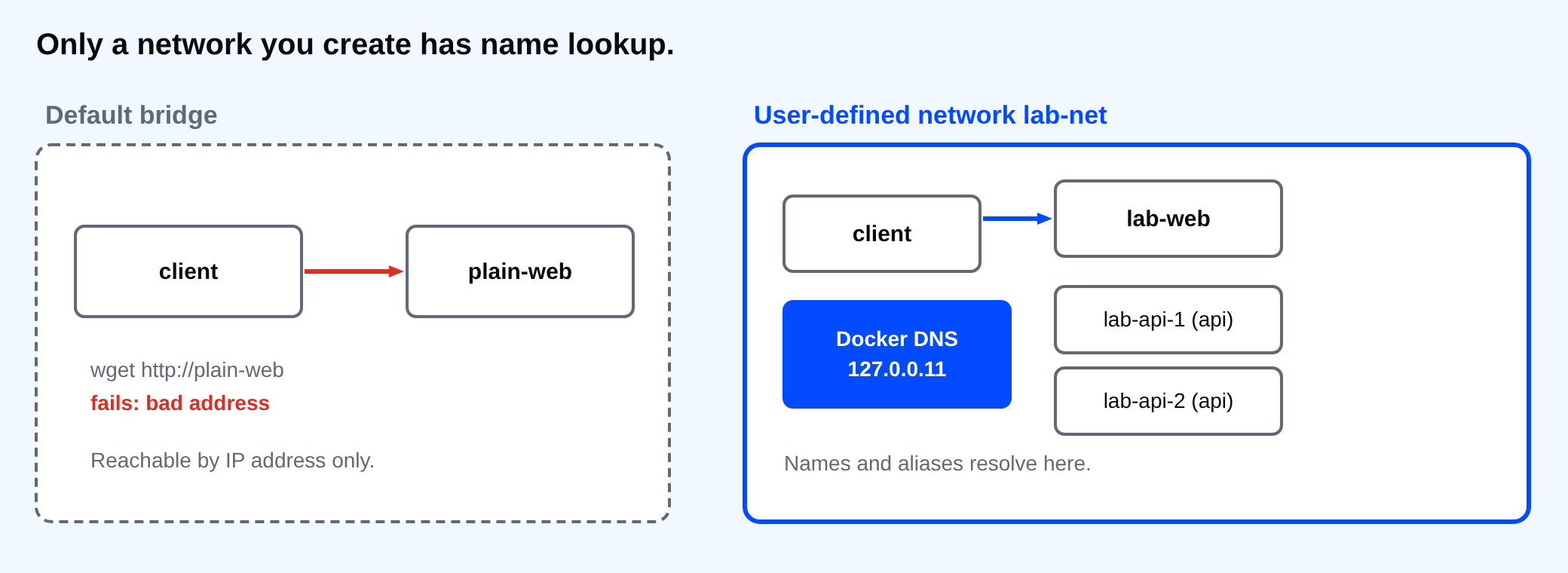
Every Docker install has a network called bridge. A container joins it when you do not say otherwise. It can reach the internet and other containers by IP address, but it has no name lookup. Start a web server on it, then ask for it by name from a second container.
docker run -d --name plain-web nginx:1.30-alpine | Out-Null
docker run --rm alpine:3.24 wget -qO /dev/null -T 3 http://plain-web
wget: bad address 'plain-web'
"Bad address" means the name did not resolve at all. The web server is running and healthy, and the second container still cannot find it. This is the number one reason a tutorial works on one person's machine and not on another's: the tutorial created a network, and the reader skipped that step.
A network you create has a name server
A user-defined bridge network adds a small DNS server. Every container on it can look up every other container by name. I give the network a fixed address range, so the addresses in this lesson are the same on every run. You do not need to, and Docker picks one for you if you leave it out.
docker network create --subnet 10.77.0.0/24 lab-net | Out-Null
docker run -d --name lab-web --network lab-net nginx:1.30-alpine | Out-Null
docker run --rm --network lab-net alpine:3.24 wget -qO /dev/null http://lab-web
"reached lab-web, exit code $LASTEXITCODE"
docker run --rm --network lab-net alpine:3.24 grep -E "^(nameserver|options)" /etc/resolv.conf
reached lab-web, exit code 0
nameserver 127.0.0.11
options ndots:0
127.0.0.11 is Docker's built-in DNS server. Docker writes it into every container on a user-defined network. When the container asks for lab-web, that server answers with the container's address on this network. It is not a name in a hosts file, and it is not the DNS of your Windows computer.
💡 Tip: Always create a network for a project, or let Docker Compose do it. Compose makes one per project, which is why the services in a compose.yaml find each other without any extra setup.
localhost is always yourself
The second most common mistake is to point one container at localhost and expect to reach another. Inside a container, localhost is that container.
docker run --rm --network lab-net alpine:3.24 wget -qO /dev/null -T 3 http://localhost
wget: can't connect to remote host: Connection refused
The connection was refused, because nothing listens on port 80 inside the wget container. The fix is the other container's name, http://lab-web. If the thing you want is on your Windows computer and not in a container, Docker Desktop provides a name for it.
docker run --rm alpine:3.24 sh -c "getent hosts host.docker.internal | wc -l"
1
One line back means host.docker.internal resolves. It points at your computer. On Linux the name is not defined, and you add it yourself with --add-host=host.docker.internal:host-gateway.
Aliases: one name, several containers
An alias is an extra name for a container, valid on one network. Give the same alias to two containers and the lookup returns both addresses. That is a basic form of load balancing, and it is handy when you want to replace a container without telling the others a new name.
docker run -d --name lab-api-1 --network lab-net --network-alias api nginx:1.30-alpine | Out-Null
docker run -d --name lab-api-2 --network lab-net --network-alias api nginx:1.30-alpine | Out-Null
docker run --rm --network lab-net alpine:3.24 sh -c "nslookup api | grep Address | sort"
Address:	127.0.0.11:53
Address: 10.77.0.3
Address: 10.77.0.4
Both containers answer to api, and each also keeps its own name. The lookup returns both addresses, and the first line is the DNS server that answered. A client that picks one of them spreads its requests over the two containers. Do not treat that as a real load balancer. It does not check whether a container is healthy.
You can see who is on a network, and with which address, from docker network inspect.
docker network inspect lab-net --format "{{range .Containers}}{{.Name}} {{.IPv4Address}}{{println}}{{end}}" | Where-Object { $_ } | Sort-Object
lab-api-1 10.77.0.3/24
lab-api-2 10.77.0.4/24
lab-web 10.77.0.2/24
⚠ Warning: A container's address changes when it is recreated. Never write an IP address into a config file. Use the name or an alias, and let the DNS server do the lookup.
Clean up
docker rm -f plain-web lab-web lab-api-1 lab-api-2 | Out-Null
docker network rm lab-net
lab-net
A network cannot be removed while a container is attached to it, which is why the containers go first.
Think of the last time a container "could not connect" in your own project. Were the two containers on the same network, and was the name you used the name on that network?
About
See why the default bridge has no names, how a network you create adds a DNS server and how aliases give one name to several containers. After this, you can read a container connection error and tell which side is wrong.
Comments (0)
Sign in to commentNo comments yet.