
Inspect and Fix Styles in Browser DevTools
Open DevTools, read computed styles, toggle rules and find which stylesheet wins. After this, a broken look points you to a line instead of a guess.
Skip ahead: If you already use Inspect to find the winning rule and edit values live in the Styles panel, skip to "Computed vs Styles", then continue.
DevTools is how you stop guessing. The browser already knows which CSS applied. Ask it.
Open Inspect
- Right-click the element that looks wrong → Inspect.
- Or press F12 (Cmd+Option+I on Mac) and use the Elements/Inspector panel.
- Use the element picker (cursor icon) to click the element on the page.
The HTML tree is on the left (or top). The CSS for the selected node is on the right.
Styles panel: what won
In Styles you will see:
- Rules that match, with the file name and line number.
- Struck-through declarations — those lost the cascade.
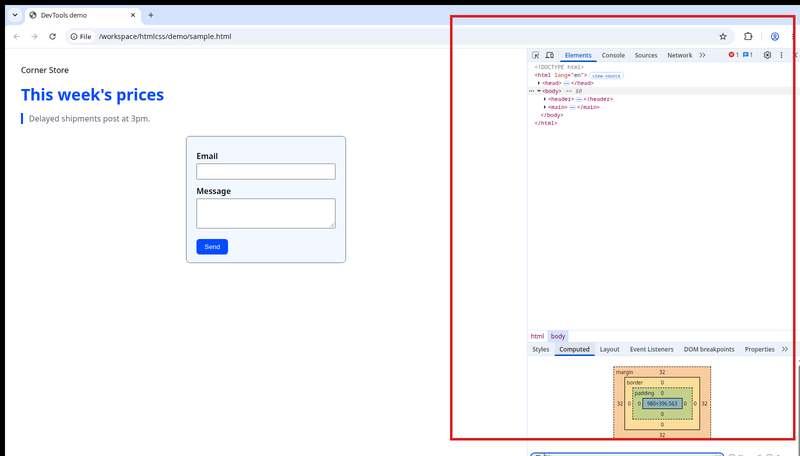
- A box model diagram (in Computed) for margin, border, padding.
Toggle the checkbox next to a declaration to turn it off without editing the file. Change color: #034bff to another hex and watch the page update. Those live edits vanish on reload until you copy them into your CSS file.
Computed vs Styles
- Styles: the rules as written, and which ones matched.
- Computed: the final value after cascade, inheritance and browser defaults.
When margin feels wrong, open Computed and read the final pixel values. When you need to know which file to edit, use Styles.
Find a missing stylesheet
Open the Network panel, reload, filter by CSS. A red 404 next to styles.css means the path is wrong. Fix href or the file location.
Example workflow
The heading is black but your CSS says blue.
- Inspect the
h1. - See
.hero h1 { color: #034bff; }struck through. - Find a more specific rule or a later rule setting
color: #080b0e. - Fix the source file. Reload. Confirm.
💡 Tip: Keep DevTools docked to the right while you learn. You want to see the page and the rules together.
Common mistakes
- Editing the wrong element. Parents and children share space on screen. Confirm the highlight outline matches the box you care about.
- Forgetting to save the real CSS file after a live edit that looked perfect.
- Ignoring the filter box in Styles. Type
colorormarginto cut noise on busy pages.
⚠ Warning: User agent styles (browser defaults) also appear. They are normal. Override them on purpose; don't delete "browser CSS".
What happens if you skip this
Every layout bug becomes a forum post. The answer is usually already on your screen in the Computed panel.
Break your practice page on purpose: set two conflicting colours. Use Inspect to predict the winner before you look at the Styles list. Then look. Were you right?
Screenshot of the workflow
When you inspect a heading, Styles should list the matching rules with file names. Computed should show the final colour and font-size. If Styles is empty for your stylesheet, the file never loaded — check Network.
Force an element state
Right-click a rule in Styles → :hov (or the :hov button) → check :hover. Now you can style hover without hovering. Same idea for :focus.
Copy the fix back
After a live edit looks right:
- Copy the declaration.
- Paste into the correct rule in your CSS file.
- Reload and confirm without DevTools edits.
If you skip step 3, you will think the site is fixed until the next refresh on another machine.
About
Open DevTools, read computed styles, toggle rules and find which stylesheet wins. After this, a broken look points you to a line instead of a guess.
Comments (0)
Sign in to commentNo comments yet.