
Reading JavaScript Errors in the Browser Console
Read a red console error from the type to the file and line number, and fix the most common beginner errors. After this, an error tells you where to look instead of making you guess.
Skip ahead: If you can read a red console error, click through to the line, and fix "is not defined" and "Cannot read properties of null" on your own, skip to "When there is no error at all".
The red text in the console is not the browser being difficult. It's the most useful thing on the screen. It tells you what went wrong, in which file, on which line. Beginners scroll past it and start changing code at random. Don't. Read it first.
Open the console and reload
Errors appear when the code runs. Open DevTools (F12, or Cmd+Option+J on a Mac), click Console, then reload the page so you see every error from the start.
The parts of an error
Here's a real one, from the order page in the DOM lesson with a typo in a selector:
const status = document.querySelector(".stauts");
status.textContent = "Paid";
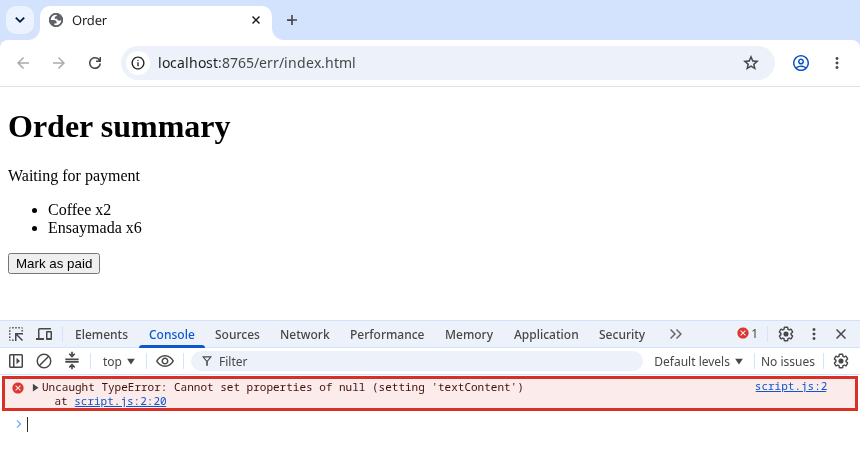
Read it in this order:
- The type:
TypeError. You used a value in a way its type doesn't allow. - The message:
Cannot set properties of null (setting 'textContent'). You tried to settextContenton something that isnull. When you read a property instead of setting it, the same problem saysCannot read properties of null. - The location:
script.js:2on the right. File and line. Click it and DevTools opens that line.
So: line 2 uses status, and status is null. Why would it be null? Because querySelector found nothing. Look at the selector. .stauts. There it is.
"Uncaught" just means nothing in your code caught the error, so the script stopped there. Everything after line 2 didn't run.
The four errors you'll see most
ReferenceError: x is not defined: you used a name that doesn't exist. A typo (totla), a different case (Totalvstotal), or a variable declared inside a block and used outside it.TypeError: Cannot read (or set) properties of null/of undefined: the thing before the dot is missing. Fornull, usually a selector that matched nothing. Forundefined, usually a missing array item or object key.TypeError: x is not a function: you added()to something that isn't a function. Often a typo in a method name (queryselector) or a variable that shadows a function.SyntaxError: Unexpected tokenormissing ) after argument list: the code can't even be read. A missing bracket, quote or comma. The line number points near the problem, sometimes on the next line.
⚠ Warning: A SyntaxError stops the whole file from running, not just one line. If nothing in your script works at all, not even a console.log on line 1, look for a syntax error first.
Fix the cause, not the message
You can make Cannot read properties of null go away by wrapping everything in if (status). Sometimes that's right, for example when the element is only on some pages. Most of the time it hides a typo, and now the page silently doesn't update. Find out why it's null, then decide.
Same with try/catch. Catching an error you don't understand just moves the problem somewhere quieter.
When there is no error at all
The worst bugs don't make anything red. The code runs. The result is wrong. Then:
- Add
console.logbefore the line you suspect, with a label:console.log("total before VAT:", total, typeof total). - Check the type. A lot of "wrong but no error" bugs are strings where you expected numbers.
- Move the log until you find the first line where the value is wrong.
💡 Tip: Errors from browser extensions and ads also show up in the console. If an error points to a file you didn't write (like content.js or a long URL), test in an Incognito or Private window, where most extensions are off, before you spend time on it.
Common mistakes
- Reading only the first word, "Uncaught", and panicking.
- Fixing the line in the error when the cause is earlier, like the selector on the line above.
- Ignoring yellow warnings forever. Not urgent, but they often explain the red error that comes later.
- Not reloading after a fix, then thinking the fix didn't work.
What happens if you skip this
You'll rely on asking someone, or pasting the error into a search, for every bug. That works for a while. It doesn't work on a deadline, and it doesn't work when the error is in your own code that nobody else has seen.
Next time you see a red error, before you change anything, say out loud: what type, what message, which line. How often does that alone tell you the fix?
About
Read a red console error from the type to the file and line number, and fix the most common beginner errors. After this, an error tells you where to look instead of making you guess.
Comments (0)
Sign in to commentNo comments yet.