
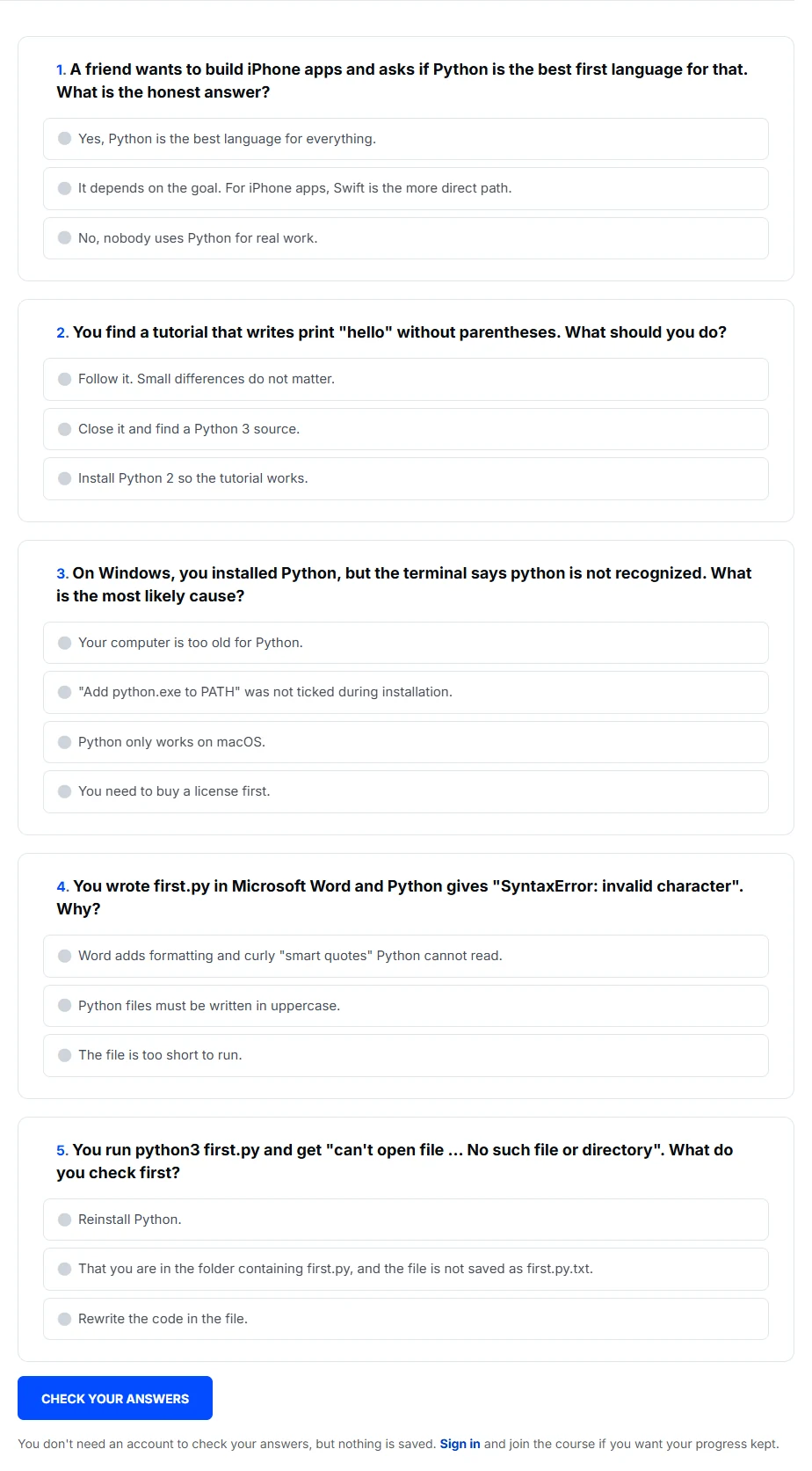
A course quiz helps you check the material in that course. It is separate from an assigned exam in My Account.
Check your answers
- Open the quiz from the course’s Content list or the lesson’s Course content menu.
- Read each question and select an answer.
- Choose Check your answers.
- Read the result and the explanation under each answer. Use that feedback to return to the lesson when something is unclear.
Use a quiz without an account
Public quizzes on open courses can be checked without joining. You get feedback, but nothing is saved to an account. If you want saved completion, sign in and join the course before taking the quiz as an enrolled reader.
When you are enrolled
A successful quiz records completion and any XP awarded by that quiz. Follow its Continue action to move on. A completed quiz may no longer accept answer changes; do not assume every quiz offers a reset or unlimited attempts.
For a timed or privately assigned assessment, use the assigned-exam guide.