
Installing Python and Running Your First Script
Check what's already on your computer, install Python 3, try the interactive shell, then write and run your first script. If something fails, the troubleshooting list starts with the most likely cause.
Installing Python and Running Your First Script
Before you install anything, check whether Python is already on your computer. On many machines it is. Installing a second copy you do not need is how beginners end up with two Pythons fighting each other.
Skip ahead: If python3 --version (macOS/Linux) or py --version (Windows) already shows Python 3, skip to "Running your first script" below.
Step 1: Check what you already have
Open a terminal. On Windows that is "Command Prompt" or "PowerShell" from the Start menu. On macOS it is "Terminal". On Linux you probably already know. Then type:
python3 --version
On Windows, try py --version and python --version instead. If you see something like Python 3.12.4, you have Python 3 and can continue to Step 3. Any 3.x version from the last few years is fine for this tutorial. If you see Python 2.7, or "command not found", or Windows opens the Microsoft Store, go to Step 2.
Step 2: Install Python 3
Download it only from python.org (Downloads section). Pick the latest stable Python 3 release for your operating system.
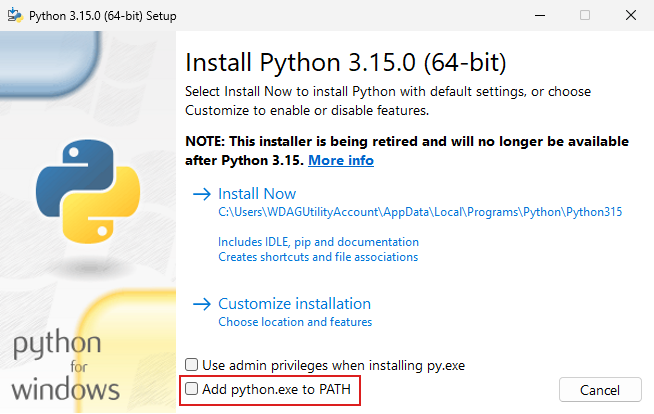
âš Warning: On Windows, tick "Add python.exe to PATH" on the first installer screen before you click "Install Now". If you miss it, the terminal will not find Python, and you will spend an hour on an error that one checkbox would have prevented. If you already missed it, run the installer again, choose "Modify", and enable it, or uninstall and reinstall.
On macOS, run the downloaded installer and follow the steps. On Linux, Python 3 is usually already installed; if not, use your distribution's package manager (for example sudo apt install python3 on Ubuntu). Do not try to remove or replace the system Python on Linux or macOS. Other programs depend on it.
Close and reopen the terminal after installing, then repeat Step 1. If the version still does not show, restart the computer before you troubleshoot anything else.
Step 3: Try the interactive shell
Type python3 (or py on Windows) and press Enter. You will see >>>. That is Python waiting for a command. Type this and press Enter:
print("Hello, I can run Python")
It prints the sentence back. To leave, type exit() and press Enter. The shell is good for quick tests. Real programs go in files.
Step 4: Write and run your first script
Create a folder called python-practice. Open a plain text editor. Notepad works, but a code editor like Visual Studio Code is better because it colors the code and shows mistakes. Do not use Word. It adds hidden formatting and "smart quotes" that Python cannot read.
Save this as first.py inside that folder:
name = "Ana"
print("Hello,", name)
print("2 + 3 =", 2 + 3)
In the terminal, go to the folder and run it:
cd python-practice
python3 first.py
On Windows, use py first.py. You should see:
Hello, Ana
2 + 3 = 5
That is a real program. Small, but real.
Troubleshooting, most likely cause first
- "No such file or directory" / "can't open file": you are in the wrong folder. Run
cdinto the folder that containsfirst.py, or check the file name. Windows sometimes saves it asfirst.py.txt. - "python3 is not recognized" on Windows: use
py, or fix PATH as described in the warning above. - "SyntaxError: invalid character": you probably have curly quotes from a word processor. Retype the quotes in a code editor.
- Nothing happens: check that the file was saved. Unsaved editor changes do not exist as far as Python is concerned.
💡 Tip: Keep all practice files in that one folder. It sounds trivial. But "where did I save that?" eats more beginner time than actual errors do.
What happens if you skip this step
You try to learn Python inside some website's online editor, which is fine for a day. Then you try to run something on your own computer, nothing works, and you do not know if the problem is your code or your setup. Getting a clean install working now separates those two problems. After this, if something breaks, it is the code.
Did first.py print both lines? If not, do not move on yet.
About
Check what's already on your computer, install Python 3, try the interactive shell, then write and run your first script. If something fails, the troubleshooting list starts with the most likely cause.
Comments (0)
Sign in to commentNo comments yet.