

Install Docker Desktop on Windows With WSL2
Check your computer, install Docker Desktop with the WSL 2 backend, and prove that the program, the engine and a real container all work. After this, you have a working Docker and know what to check when it does not start.
Skip ahead: If Docker Desktop is already installed and docker --version works in PowerShell, skip to "Check that it works", then go on to the next lesson.
This lesson installs Docker Desktop on Windows with the WSL 2 backend. The whole job takes about 20 minutes, most of it downloading and restarting. Linux users do not need Docker Desktop. The Linux note near the end covers them.
Check your computer first
Docker's own requirements for the WSL 2 backend, from its install page, are these.
- Windows 11 64-bit (Pro, Enterprise or Education 23H2 or newer), or Windows 10 64-bit (Pro, Enterprise or Education 22H2).
- WSL version 2.1.5 or later.
- Hardware virtualization turned on in the BIOS or UEFI. In Task Manager, open Performance, then CPU, and look for "Virtualization: Enabled".
- 8 GB of memory. Docker lists it as the minimum, and I would not try with less.
Windows Home works for Linux containers. Everything in this course is a Linux container.
Check the WSL version in PowerShell. Your numbers will differ. What matters is that the first line is 2.1.5 or higher.
$env:WSL_UTF8 = 1
wsl --version
WSL version: 2.6.3.0
Kernel version: 6.6.87.2-1
If the command prints help text instead of versions, you have the old built-in WSL. Open PowerShell as administrator and run wsl --install (or wsl --update if WSL is already installed), then restart when it asks. Do this before you install Docker. It saves you the "WSL needs updating" error later.
Install Docker Desktop
- Download the installer from the Docker Desktop page at docs.docker.com (Install, then Windows). Take the one that matches your processor. Most computers want "x86_64".
- Run
Docker Desktop Installer.exe. It asks for an installation mode. The per-user mode is the default and does not need administrator rights. I would take it. The all-users mode is only needed for Windows containers or the Hyper-V backend, and it installs a privileged service. - On the Configuration page, leave "Use WSL 2 instead of Hyper-V" ticked.
- Let it finish, then press Close. Docker Desktop does not start by itself the first time.
⚠ Warning: Do not add yourself to the docker-users group unless you need Windows containers or Hyper-V. Docker's documentation says membership gives access to the Docker daemon, which is equivalent to administrator rights on the machine. For Linux containers on WSL 2 you do not need it.
Start it and accept the terms
Search for "Docker Desktop" in the Start menu and open it. It shows the Docker Subscription Service Agreement. Docker's summary: it is free for personal use, education, non-commercial open source, and small businesses (fewer than 250 employees and less than 10 million US dollars in yearly revenue). Larger companies need a paid subscription for work use. Read the terms for your own case. I cannot decide that for you.
You can skip the sign-in. A free Docker account is not needed to pull public images. The first start takes a minute or two while it sets up the Linux environment.
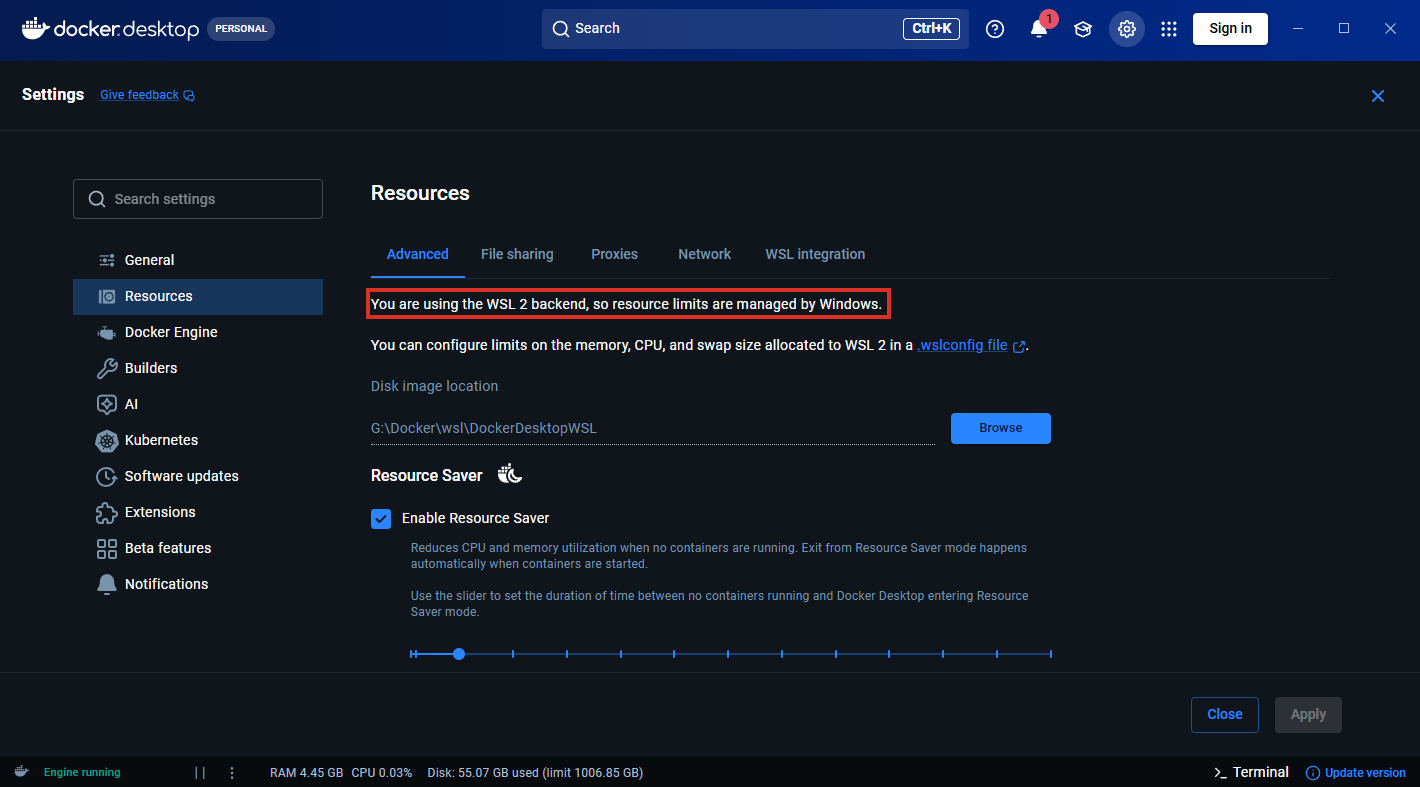
Open Settings with the gear icon, then Resources. On the Advanced page, Docker Desktop 4.85 says "You are using the WSL 2 backend, so resource limits are managed by Windows." That sentence is what this course assumes. Older versions of Docker Desktop had a tick box called "Use the WSL 2 based engine" on the General page. The General page of version 4.85 does not have it.
Check that it works
Wait until the whale in the system tray stops animating, then open a new PowerShell window. A window that was open before the install will not know about the docker command yet.
docker --version
docker compose version
Docker version 29.6.2, build dfc4efb
Docker Compose version v5.3.1
Those are the versions this course was written and tested with: Docker Desktop 4.85.0, Docker Engine and CLI 29.6.2, Compose v5.3.1. A newer version will mostly behave the same. If an output line differs from the lesson, that is probably why.
WSL should now list a distribution named docker-desktop.
wsl -l -v
docker-desktop Running 2
The last test runs a real container. hello-world is a tiny image made for exactly this.
docker run --rm hello-world
Unable to find image 'hello-world:latest' locally
latest: Pulling from library/hello-world
Status: Downloaded newer image for hello-world:latest
Hello from Docker!
This message shows that your installation appears to be working correctly.
Docker did not have the image, so it downloaded it from Docker Hub, started a container, printed the message and stopped. --rm removed the container afterward. The image stays on disk. Run the same command again and the first lines about pulling will not appear.
If it does not work
Most likely first: the engine is still starting. Look at the Docker Desktop window. A status at the bottom left that says "Engine running" means it is ready. If you see an error about WSL or virtualization, the tutorial "Fix Docker Desktop Stuck on Starting" goes through the usual causes in order.
💡 Tip: On Linux, install Docker Engine from your distribution's Docker instructions instead of Docker Desktop. The commands in this course are the same. The difference is that you need sudo, or membership of the docker group. That group is also root-equivalent, so add yourself deliberately.
Which flag made Docker delete the hello-world container, and what is still on your disk because of it?
About
Check your computer, install Docker Desktop with the WSL 2 backend, and prove that the program, the engine and a real container all work. After this, you have a working Docker and know what to check when it does not start.
Comments (0)
Sign in to commentNo comments yet.