
Run, Stop and Remove a Container
Start a web server in the background, publish a port, then stop, start and remove it, and see why a container lives only as long as its main command. After this, you can run and tidy up a container without leaving anything behind.
Skip ahead: If you can already start a container, publish a port and remove it, skip to "Two errors you will meet", then go on to the next lesson.
A container is a running copy of an image, so the first skill is the life cycle: create it, start it, stop it, remove it. Four commands cover almost everything: docker run, docker ps, docker stop and docker rm. This lesson uses the nginx web server because it gives you something you can open in a browser.
Run a container
docker run --name hello-web -d -p 8080:80 nginx:1.30-alpine
Unable to find image 'nginx:1.30-alpine' locally
1.30-alpine: Pulling from library/nginx
...
Status: Downloaded newer image for nginx:1.30-alpine
The long line of letters and digits that follows is the new container's ID. Piece by piece:
--name hello-webgives the container a name you can type. Without it, Docker invents one such asvigilant_turing.-dmeans detached. The container runs in the background and gives your prompt back.-p 8080:80publishes a port. The first number is the port on your computer, the second is the port inside the container. Traffic tolocalhost:8080goes to port 80 in the container.nginx:1.30-alpineis the image. The part after the colon is the tag, a version label. Pin a tag. If you write onlynginx, Docker useslatest, andlatestchanges over time.
Docker did not have the image locally, so it pulled it first. That only happens on the first run.
See what is running
docker ps --filter name=hello-web --format "table {{.Names}}\t{{.Image}}\t{{.Status}}\t{{.Ports}}"
NAMES       IMAGE               STATUS                  PORTS
hello-web   nginx:1.30-alpine   Up Less than a second   0.0.0.0:8080->80/tcp, [::]:8080->80/tcp
docker ps lists running containers only. I filter by name here so the list stays short, because on a machine with other projects it can be long. Now ask the web server for its page.
curl.exe -s http://localhost:8080 | Select-Object -First 4
<!DOCTYPE html>
<html>
<head>
<title>Welcome to nginx!</title>
💡 Tip: Type curl.exe, not curl, in Windows PowerShell 5. Plain curl there is an alias for a different command. You can also paste http://localhost:8080 into a browser.
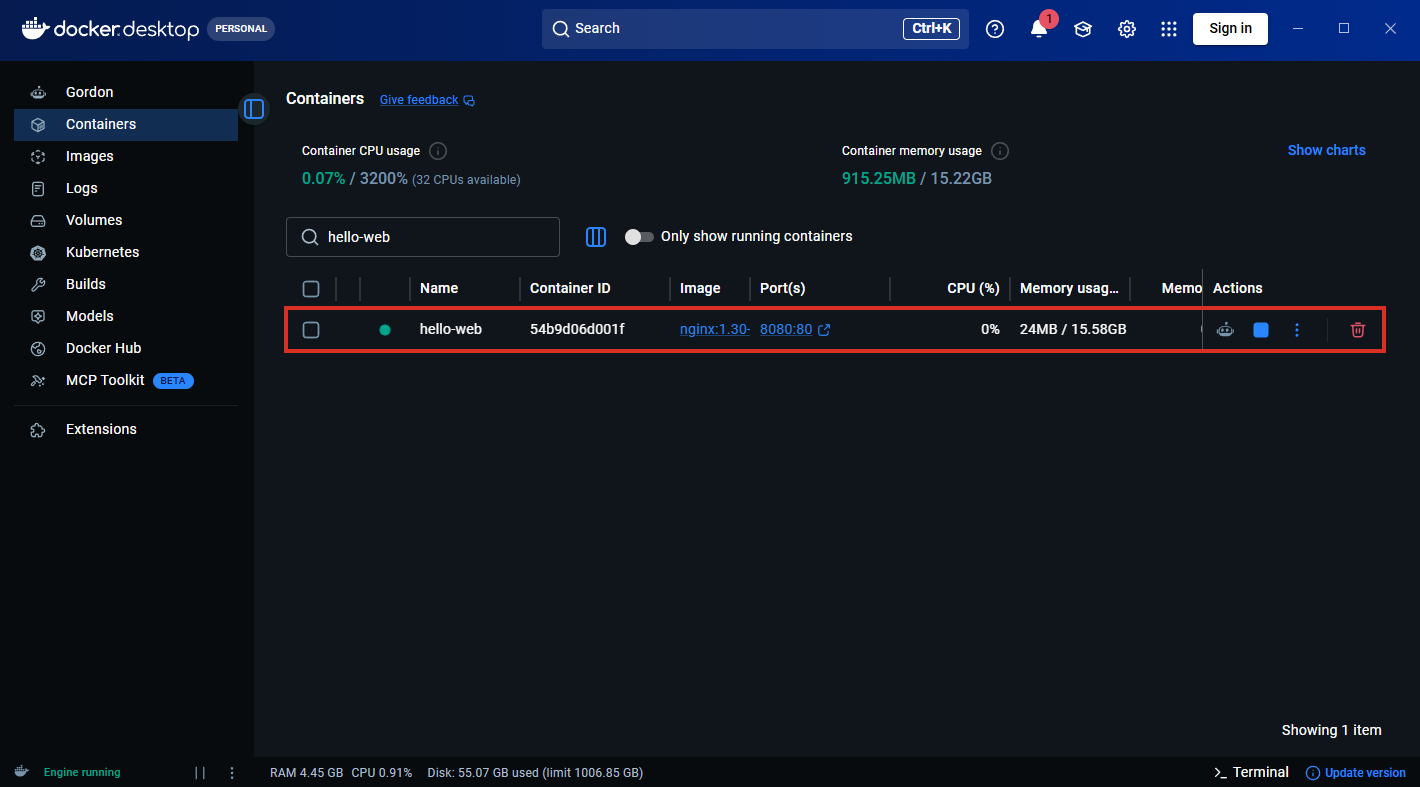
Docker Desktop shows the same container in its Containers tab, with a green dot while it runs and the port you published. I typed hello-web in the search box so only this container shows. Your list will hold whatever you have started.
Stop it, start it, remove it
docker stop hello-web
hello-web
A stopped container still exists. docker ps -a includes stopped ones.
docker ps -a --filter name=hello-web --format "table {{.Names}}\t{{.Status}}"
NAMES       STATUS
hello-web   Exited (0) Less than a second ago
"Exited (0)" means it stopped normally. Any other number means it stopped with an error. Lesson 4 shows how to find out why. docker start hello-web would bring it back with the same name and settings. To get rid of it for good:
docker rm hello-web
hello-web
The container is gone. The image is still on disk, so the next docker run will not download it again.
⚠ Warning: docker rm -f stops and removes a container in one step, and it does not ask. Anything the container wrote inside itself is gone with it. Lesson 7 shows how to keep data.
One-off containers
Some containers should disappear when they finish. Add --rm and Docker removes the container as soon as it exits.
docker run --rm alpine:3.24 echo "hello from a container"
Unable to find image 'alpine:3.24' locally
Status: Downloaded newer image for alpine:3.24
hello from a container
Two errors you will meet
Both come from the same two ideas: a name belongs to one container, and a port belongs to one program. Start the web server again, then try to start a second one with the same name.
docker run --name hello-web -d -p 8080:80 nginx:1.30-alpine
docker run --name hello-web -d -p 8081:80 nginx:1.30-alpine
docker: Error response from daemon: Conflict. The container name "/hello-web" is already in use by container "a313060aba954c45c7ce2ceb003211376245bd1bc78573f8a75c5b7550083432". You have to remove (or rename) that container to be able to reuse that name.

Run 'docker run --help' for more information
Pick another name, or remove the old container. The long ID in the message is the container that owns the name. Now reuse the port with a new name.
docker run --name hello-web-2 -d -p 8080:80 nginx:1.30-alpine
66333a875feb9210febb61c75e6d98a1251ec72adc3f278452ae71ca033088a1
docker: Error response from daemon: failed to set up container networking: driver failed programming external connectivity on endpoint hello-web-2 (382a66c36947550e19b91c8e5195e1e7f90c263c561c3d11a32089b6312217a4): Bind for 0.0.0.0:8080 failed: port is already allocated

Run 'docker run --help' for more information
Port 8080 on your computer already belongs to hello-web. Change the first number, for example -p 8081:80. The second number can stay 80, because every container has its own inside. One more thing: the failed run still created a container called hello-web-2 that never started. Remove it and the first one.
docker rm -f hello-web hello-web-2
hello-web
hello-web-2
A reader on Linux gets the same output. On a Mac or Linux terminal, replace curl.exe with curl.
If a container named db is stopped but not removed, can you start a new container with the name db?
About
Start a web server in the background, publish a port, then stop, start and remove it, and see why a container lives only as long as its main command. After this, you can run and tidy up a container without leaving anything behind.
Comments (0)
Sign in to commentNo comments yet.