
Pull an Image and See What Layers Are
Pull images, read their names, tags and sizes, and see how layers are stacked and shared. After this, you can read an image name and say why a second download is smaller than the first.
Skip ahead: If you know what a tag is and why two images can share layers, skip to "Look inside an image", then go on to the next lesson.
Every container starts from an image, so you need to know what you are pulling before you run it. This lesson pulls three images, reads their sizes and layers, and shows why the second download is smaller than the first. It uses two small images: alpine:3.24, a tiny Linux, and python:3.14-alpine, Python on top of that Linux.
Pull an image
docker run pulls an image by itself when it is missing. docker pull does only the download, which is handy when you want to see what you are getting before anything runs.
docker pull alpine:3.24
3.24: Pulling from library/alpine
Status: Downloaded newer image for alpine:3.24
docker.io/library/alpine:3.24
An image name has up to four parts: docker.io/library/alpine:3.24. The registry is docker.io, which is Docker Hub and the default when you leave it out. library is the namespace for the official images. alpine is the repository. 3.24 is the tag. Docker also prints a digest, a sha256: value that identifies the exact bytes. A tag can move to a newer build. A digest cannot.
docker image ls alpine
IMAGE         ID             DISK USAGE   CONTENT SIZE   EXTRA
alpine:3.24   294b683cb724         13MB         3.94MB
Docker 29 shows two sizes. "Disk usage" is the unpacked image on disk. "Content size" is roughly what was downloaded, which is compressed, so it is smaller. Alpine is small on purpose, and that is why many examples use it. Now look at what is inside by running a command in it.
docker run --rm alpine:3.24 cat /etc/os-release
NAME="Alpine Linux"
ID=alpine
VERSION_ID=3.24.2
PRETTY_NAME="Alpine Linux v3.24"
HOME_URL="https://alpinelinux.org/"
BUG_REPORT_URL="https://gitlab.alpinelinux.org/alpine/aports/-/issues"
An image is a small Linux file system that a container uses. There is no operating system installed in the usual sense: no boot, no kernel. The kernel comes from the host.
💡 Tip: Official images (the ones with library in the name) are checked and maintained by Docker and the software's own project. For anything else, check who published it before you run it.
Layers
Pull a bigger image and read the output closely. Each line that ends in "Pull complete" is one layer.
docker pull nginx:1.30-alpine
1.30-alpine: Pulling from library/nginx
...
Status: Downloaded newer image for nginx:1.30-alpine
docker.io/library/nginx:1.30-alpine
On your own screen you will see a "Pulling fs layer" line for each layer. Each layer has its own ID, and the same ID in two different images is the same layer.
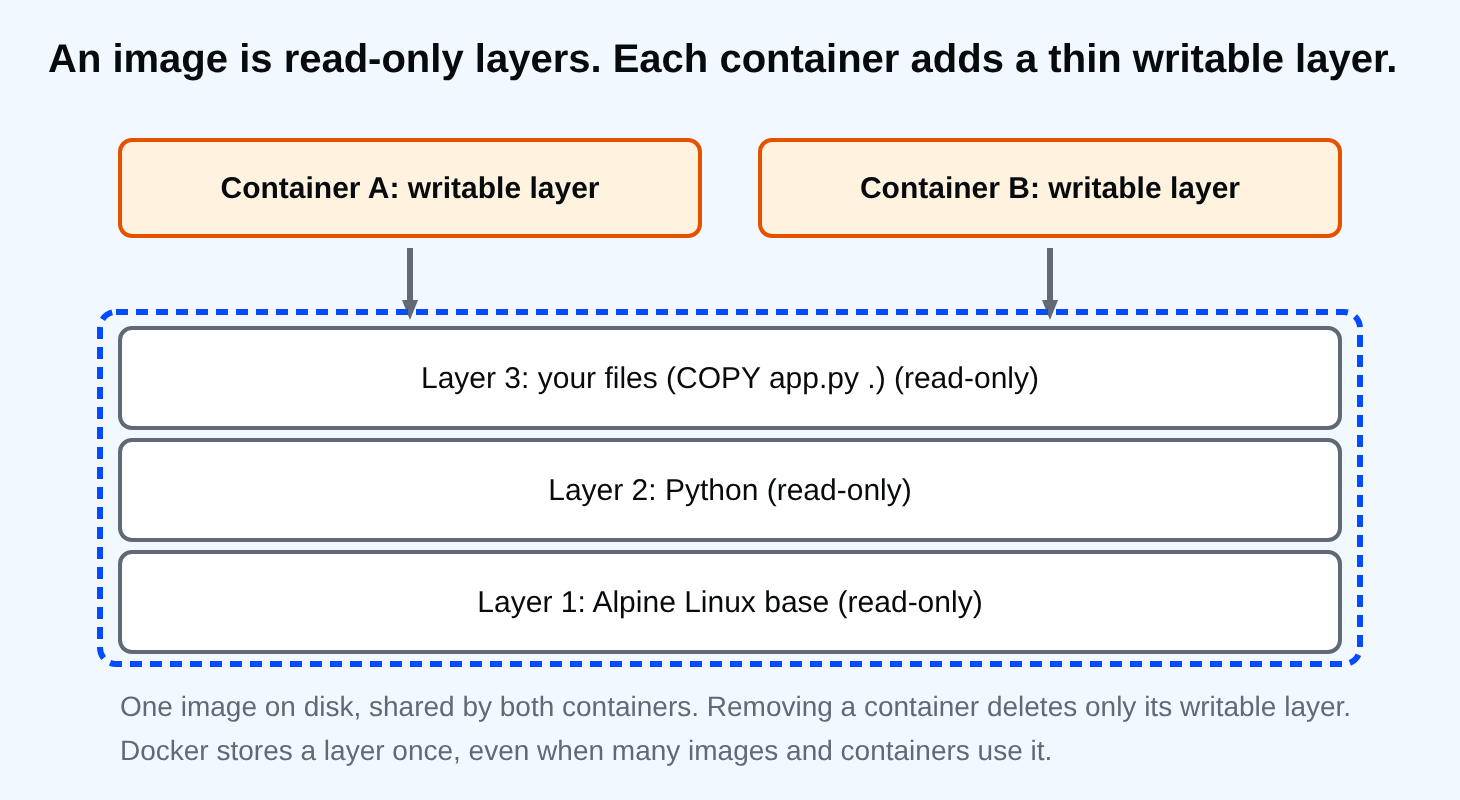
An image is a stack of layers. Each layer is a set of file changes, such as "add these files" or "change this config". Docker downloads layers separately, and it stores each one once. You can read the stack with docker history. It lists the newest layer first.
docker history --format "{{.Size}}\t{{.CreatedBy}}" alpine:3.24
0B	CMD ["/bin/sh"]
9.08MB	ADD alpine-minirootfs-3.24.2-x86_64.tar.gz /…
Three things follow from layers.
- Layers are shared. Two images built on the same base reuse the base layer, so the second download is smaller. In my runs, the first
nginx:1.30-alpinepull on a clean machine listed eight layers. The pull above listed seven, because the Alpine layer was already here fromalpine:3.24. Docker does not announce that it skipped it. The line is simply missing. - Layers are read-only. A running container adds one thin writable layer on top. Everything it writes goes there, and the layer is deleted with the container. That is the reason for the question at the end of lesson 1.
- Order matters when you build your own image. Docker reuses a layer only if everything before it is unchanged. Lesson 6 uses this.
The Python image is built on the same Alpine base, so it makes a good test of the sharing. Pull it and count its layers.
docker pull python:3.14-alpine
3.14-alpine: Pulling from library/python
Status: Downloaded newer image for python:3.14-alpine
docker.io/library/python:3.14-alpine
Look inside an image
docker image inspect prints everything Docker knows about an image as JSON. Use --format to ask for one thing. These two answer questions you will have often: how many layers, and which command starts the container.
docker image inspect alpine:3.24 --format "layers: {{len .RootFS.Layers}}"
docker image inspect python:3.14-alpine --format "default command: {{.Config.Cmd}}"
layers: 1
default command: [python3]
The Alpine image has a single layer, which is just its file system. The Python image's default command is python3. Run it without a keyboard attached and the Python prompt has nothing to read, so it exits at once. Lesson 11 shows the same thing with a shell.
Common mistakes
- Using
latestand assuming it means "newest". It means "the tag called latest", which is whatever the maintainer last pushed. Pin a version when you want the same result next month. - Pulling a huge image for a small job. Compare sizes with
docker image lsfirst. A-slimor-alpinetag is usually much smaller. - Treating the first pull as the image's size. The size you see is for the whole stack, but some of it may be shared with other images, so the disk used by many images together is less than the sum of their sizes.
⚠ Warning: An image you pull is a program you will run. Pulling does not run it, but the next step does. Do not run an image from a name you do not recognise, even if a forum answer tells you to.
If two images share a base layer, how many copies of that layer does your disk hold?
About
Pull images, read their names, tags and sizes, and see how layers are stacked and shared. After this, you can read an image name and say why a second download is smaller than the first.
Comments (0)
Sign in to commentNo comments yet.