
Networks: Let Two Containers Talk by Name
Publish a port, create a user-defined network and let one container reach another by its name. After this, you can fix the usual connection errors between containers.
Skip ahead: If you already create user-defined networks and reach containers by name, skip to "Published ports are for your computer", then go on to the next lesson.
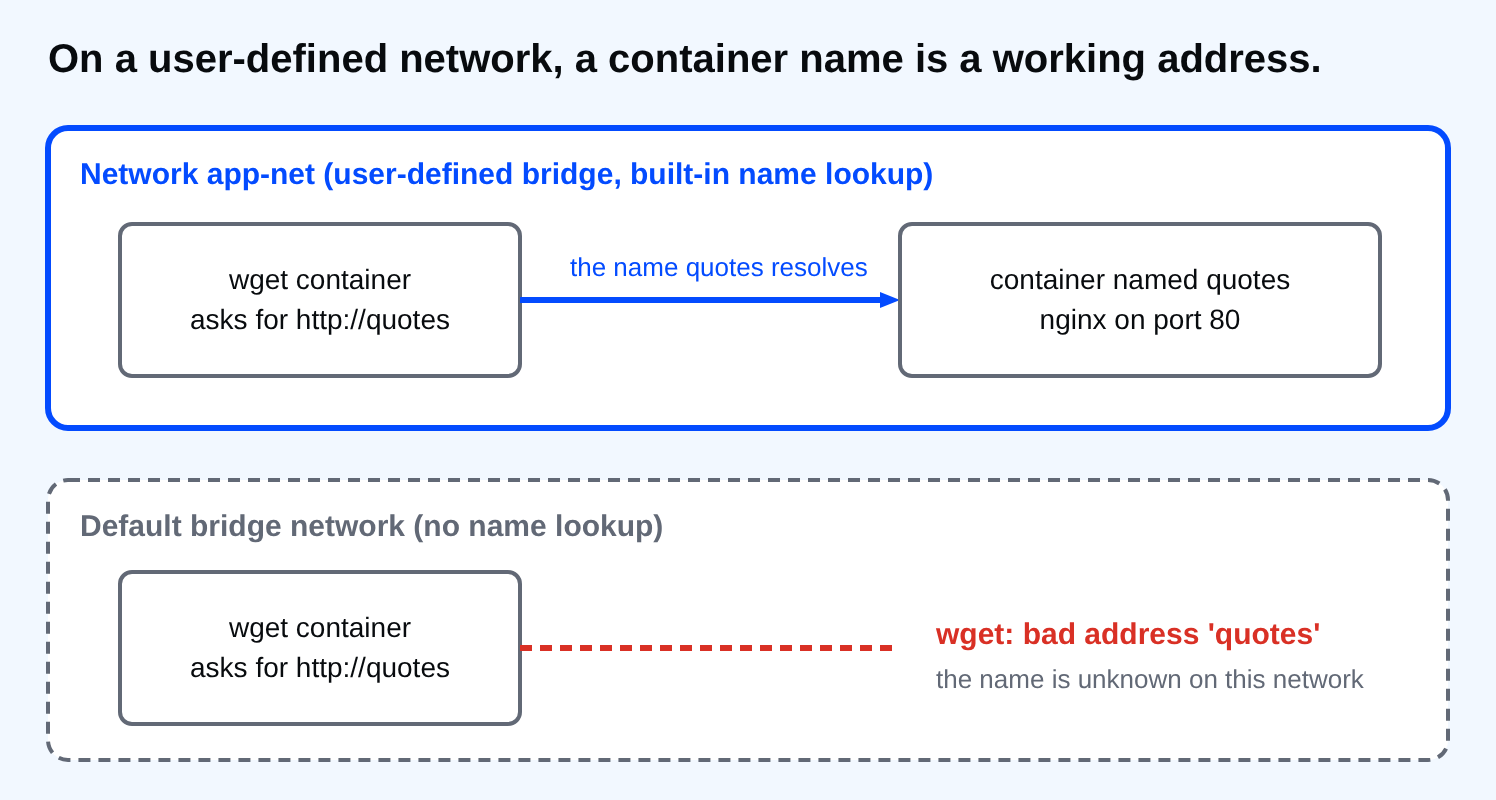
An app is rarely one container. A web app talks to a database, a cache, another service. Those containers need to find each other, and they need to do it without you looking up IP addresses that change every time. Docker solves this with networks. The rule is short: containers on the same user-defined network can reach each other by container name. The default network does not do this, and that surprises almost everyone once.
The default network cannot resolve names
Start a web server on the default network, then try to reach it by name from a second container.
docker run -d --name quotes-default nginx:1.30-alpine
docker run --rm alpine:3.24 wget -qO- http://quotes-default
wget: bad address 'quotes-default'
wget is a tiny download tool that comes with Alpine. "Bad address" means the name did not resolve. The container exists and is running. The two containers are simply on the default network, which has no name lookup. You could use the web server's IP address, but it changes whenever the container is recreated, so do not build on it.
Create a network and use it
docker network create app-net
docker run -d --name quotes --network app-net nginx:1.30-alpine
docker run --rm --network app-net alpine:3.24 wget -qO- http://quotes | Select-String "<title>"
bbf2aa225894ae99603b8113ce9ab6ed9c1fc3fb5fac38752c4010d2f3b37266
e1aaff73d065b1af88f472907a7dded8d84a0c41b39f6533e2fcd4822c7ec2c1

<title>Welcome to nginx!</title>
The first two lines are the IDs of the new network and of the web server container. Then the third container asked for http://quotes, Docker's built-in DNS turned the name into the first container's address, and nginx answered. I print only the page title, because the whole welcome page is long. That is the whole trick. The name is the container name you set with --name.
docker network ls --filter name=app-net
docker network inspect app-net --format "{{range .Containers}}{{.Name}} {{end}}"
NETWORK ID     NAME      DRIVER    SCOPE
bbf2aa225894   app-net   bridge    local
quotes
network ls shows the network and its driver. bridge is the normal single-machine kind. inspect with a format string lists which containers are attached. Only quotes is on it, because the wget container was removed with --rm.
Published ports are for your computer
You did not publish a port for quotes, and the lookup still worked. Containers on the same network reach each other on the container's own port, here port 80, with no -p needed. -p is only for traffic from outside Docker, such as your browser. Check that nothing on your computer is listening.
curl.exe -sS http://localhost:8084
curl: (7) Failed to connect to localhost:8084 after
That is correct. It is also the safer default: a database that other containers need does not have to be open to your whole computer. Publish a port only for what a person or a program outside Docker must reach. A published port is also a door that anything on your network may knock on.
Attach to a network later
You can move a container onto a network after it started. The container keeps running.
docker network connect app-net quotes-default
docker run --rm --network app-net alpine:3.24 wget -qO- http://quotes-default | Select-String "<title>"
<title>Welcome to nginx!</title>
The container is now on both networks. It can be on several, which is how you let a web service reach a database without exposing the database to everything else. To do the reverse, docker network disconnect.
⚠ Warning: A network cannot be removed while a container is attached to it. Remove or disconnect the containers first, then docker network rm app-net. Compose (lesson 9) creates and removes its own network for you, which is one reason to use it.
💡 Tip: Prefer your own network over the default one for anything with more than one container. You get name lookup for free, and your project is separated from other projects on the same machine.
docker rm -f quotes quotes-default
docker network rm app-net
Why can your browser not open http://quotes, even though another container on the network can?
About
Publish a port, create a user-defined network and let one container reach another by its name. After this, you can fix the usual connection errors between containers.
Comments (0)
Sign in to commentNo comments yet.