
This guide explains how to choose the text and terms being analysed, then interpret the figures in context. Begin with the passage you want to understand rather than a percentage you want to reach.
Choose URL or text input
- Open Keyword Density. Use a public URL when you want to inspect what the extraction service can retrieve from that page.
- For a specific draft or passage, expand Options and choose Text analysis, then paste the text you are authorised to submit. The result describes that input, so keep a copy if you intend to compare revisions.
- Automatic keyword detection is selected initially. Choose Provide keywords manually when the question concerns particular terms that might not appear in the automatic selection.
- For URL input that has changed, use Force a fresh content extraction when you need the service to retrieve it again. Choose Start Keyword Density and wait for the result.
Keep private text, passwords and access tokens out of submissions. Check the tool privacy information before using material that should not leave your device.
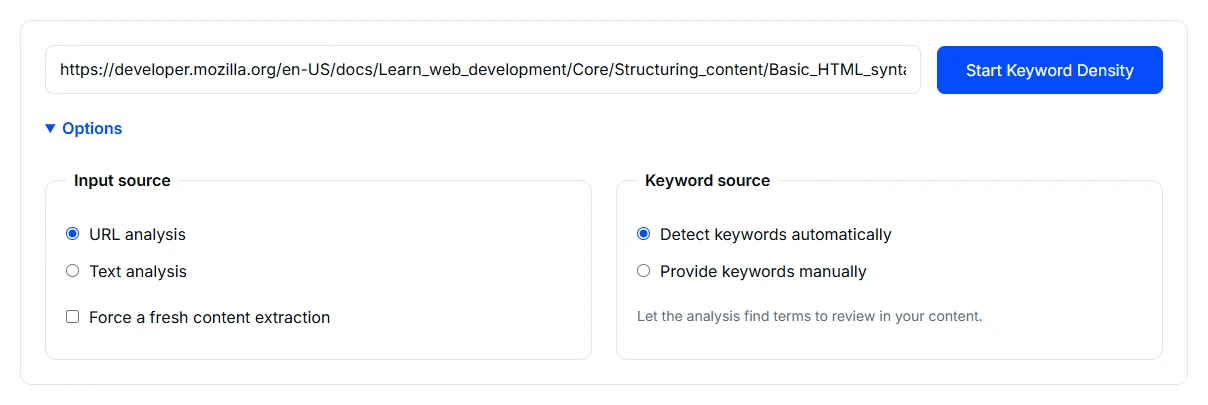
Read an example report
This example uses the public MDN Basic HTML syntax guide with automatic keyword detection. The report describes the extracted text; another page or run can return different terms.
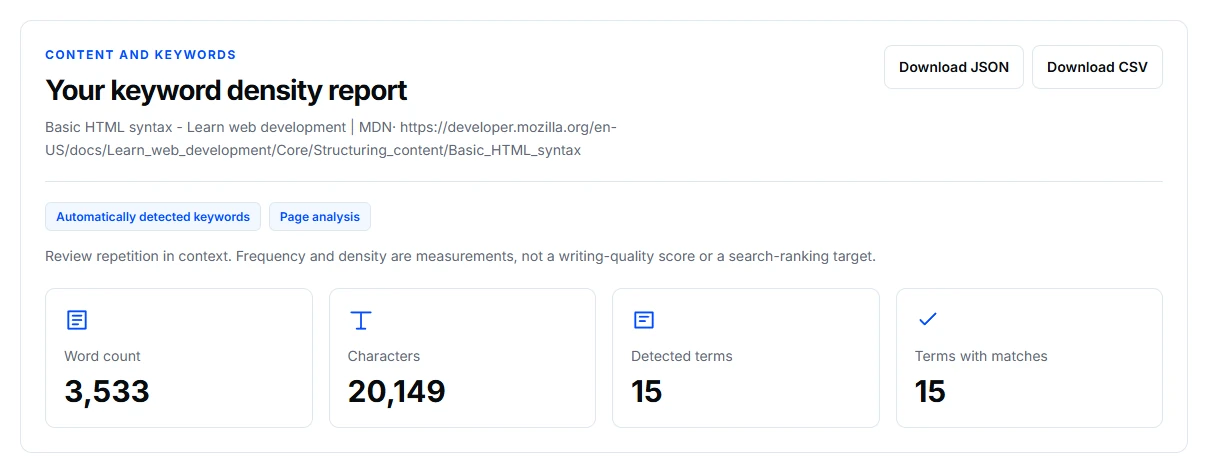
The example lists HTML 91 times, with a reported density of 2.58%. That fits the subject of an HTML guide. It is not a percentage to copy into an unrelated page. Read the actual sentences before deciding that a term is overused.
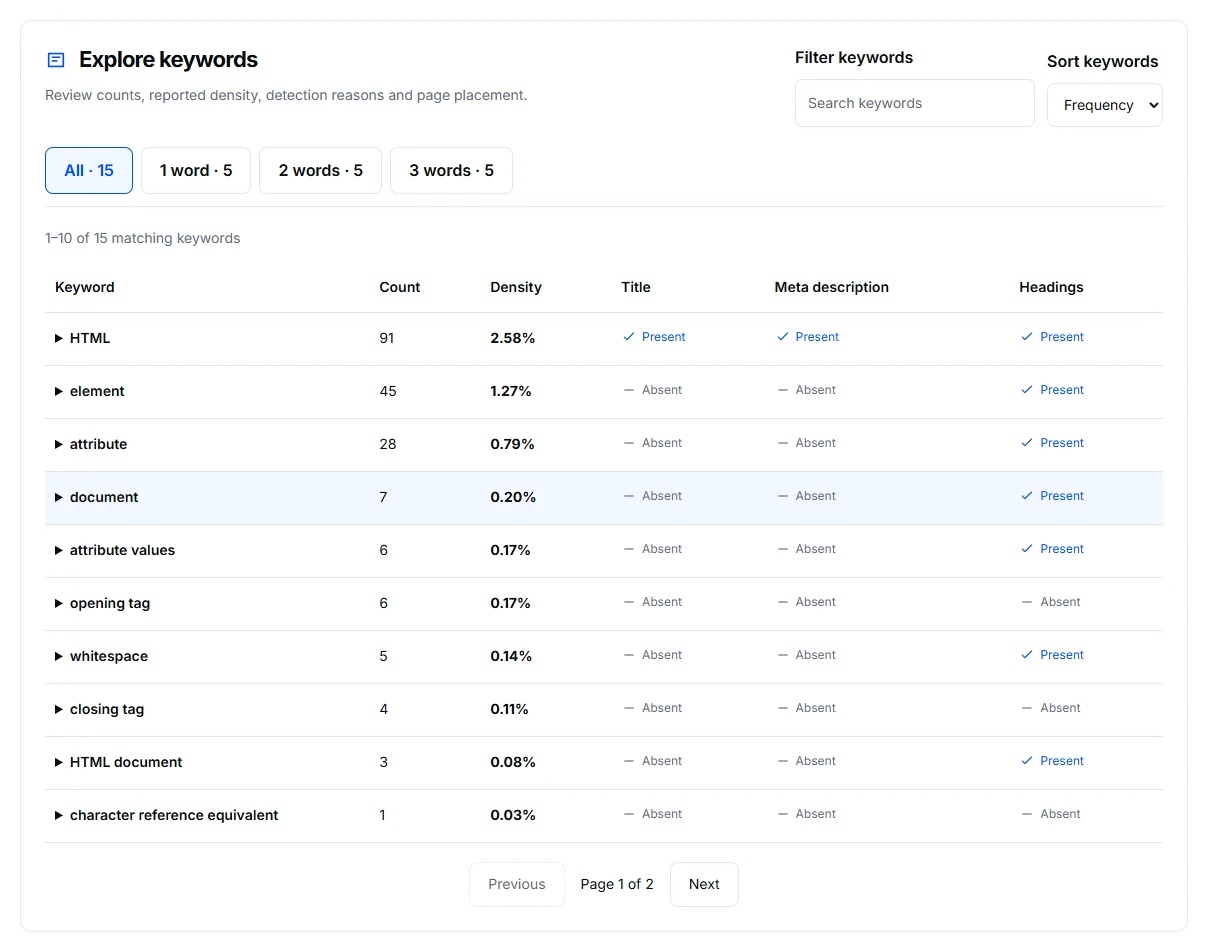
Use Filter keywords to inspect a term, and the phrase groups to separate single words from longer phrases. The placement columns help you check what was returned for the title, description, and headings; they do not tell you to put every term in every field.
Interpret counts and placement together
Frequency describes the occurrences counted in the analysed text. The reported density relates those occurrences to the analysed content; it is not a recommended writing target. A short excerpt, repeated navigation or missing article text can change the figures without showing a problem in the writing.
Use the keyword filter and phrase groups to inspect the terms relevant to your question. Read the matching sentences as well as the table. A repeated product name can be useful; repeating the same sales claim in each paragraph may add little.
In placement information, an absent term and an unknown or unavailable field are different observations. Compare the title, description and headings with the page before interpreting a missing value as something to fix.
Review an edit
Keep the input mode, terms and passage scope consistent. Make the wording change because it improves the explanation, then run the comparison on that same material. If the extracted word count changes substantially, check what was retrieved before attributing the difference to your edit.
Know the limits
This analysis cannot decide whether the page answers a reader's question. Automatic term selection can miss a business-specific phrase, and a density figure cannot establish relevance or search performance. Keep necessary names and explanations even when they repeat.
If terms or text look wrong
Check the selected input and keyword mode first. For URL results, use Content Extractor to inspect the retrieved article. For a failed or incomplete request, follow the troubleshooting guide before retrying.