
Use SEO Audit to inspect a public page, then check the returned evidence before deciding what to change. Start with the device and finding relevant to your question. If you already know how to submit a URL, continue to the completed example.
Choose the page and devices
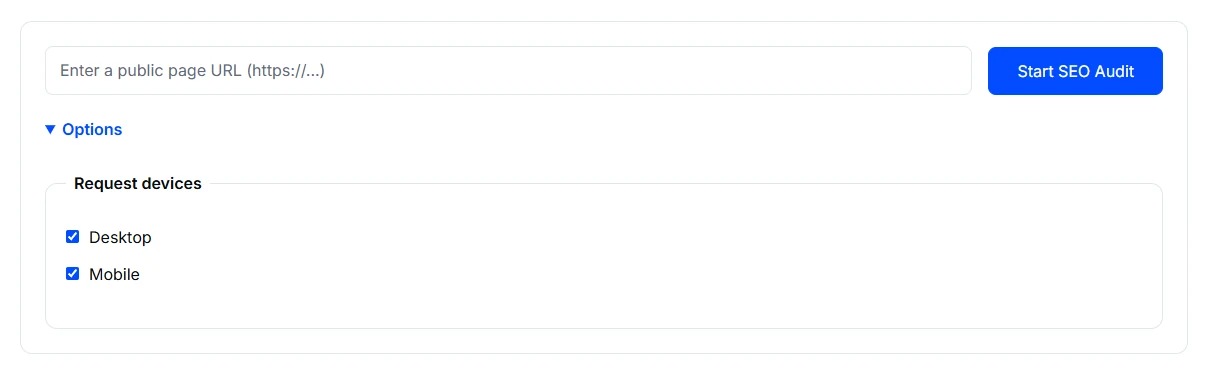
- Open SEO Audit and enter the complete public page URL. Check that it opens while signed out.
- Expand Options and review Request devices. Desktop and Mobile are selected initially. Keep both for a device comparison, or select the device relevant to the problem.
- Select Start SEO Audit and wait for Audit complete. If a device result is missing, read the notice and inspect the available report before drawing a conclusion.
Submit only pages you are authorised to analyse. Keep passwords, private records and access tokens out of the URL. The tool privacy information explains where submissions go.
Worked example: a completed Desktop audit
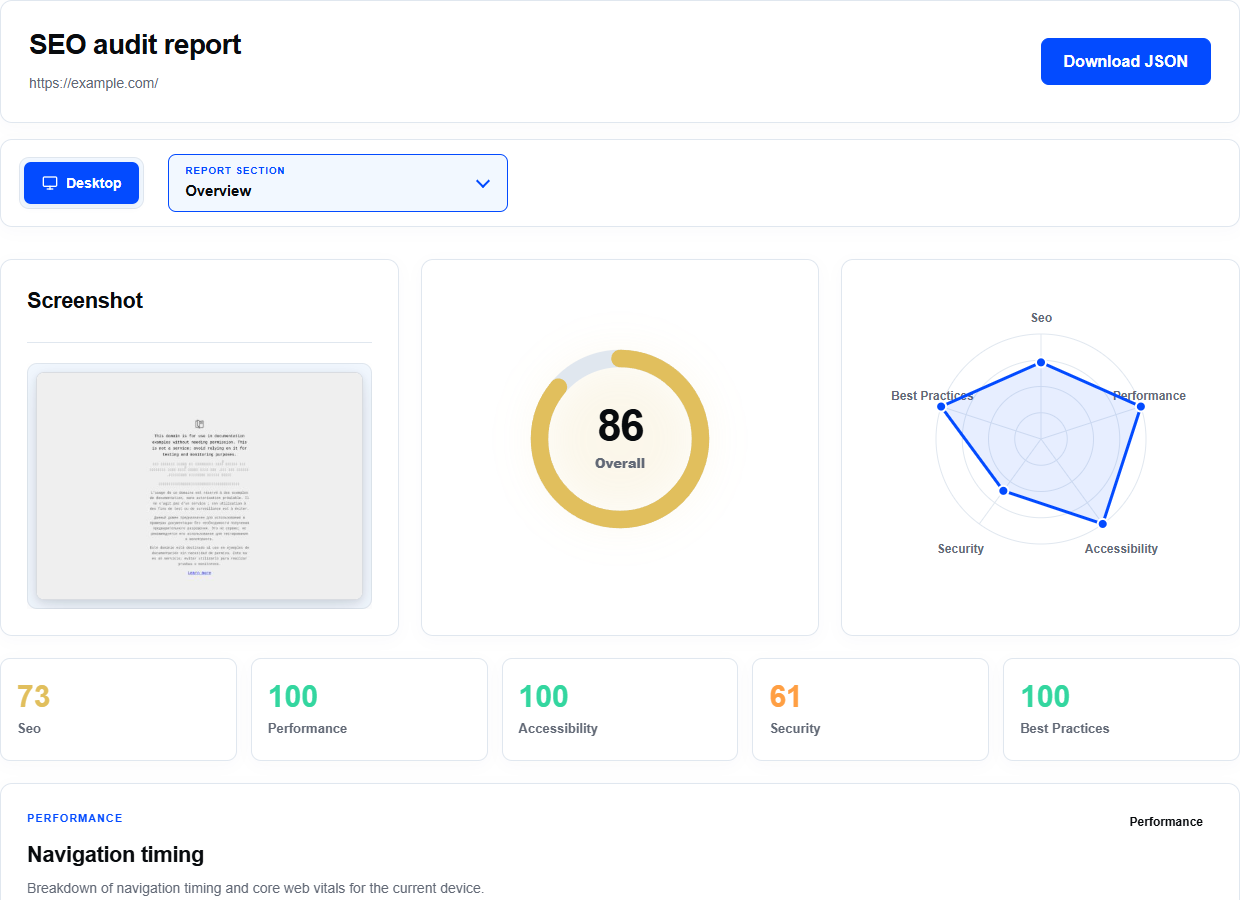
This example used https://example.com/ with Desktop selected on 22 October 2026. The request completed and returned a report. Mobile was not requested, so this example cannot establish how the page behaves on a phone.
The captured Overview shows an overall score of 86: SEO 73, Performance 100, Accessibility 100, Security 61 and Best Practices 100. These are the service’s results for this run. A high category score does not replace checking the underlying observations or testing the page yourself.
Inspect the findings behind the scores
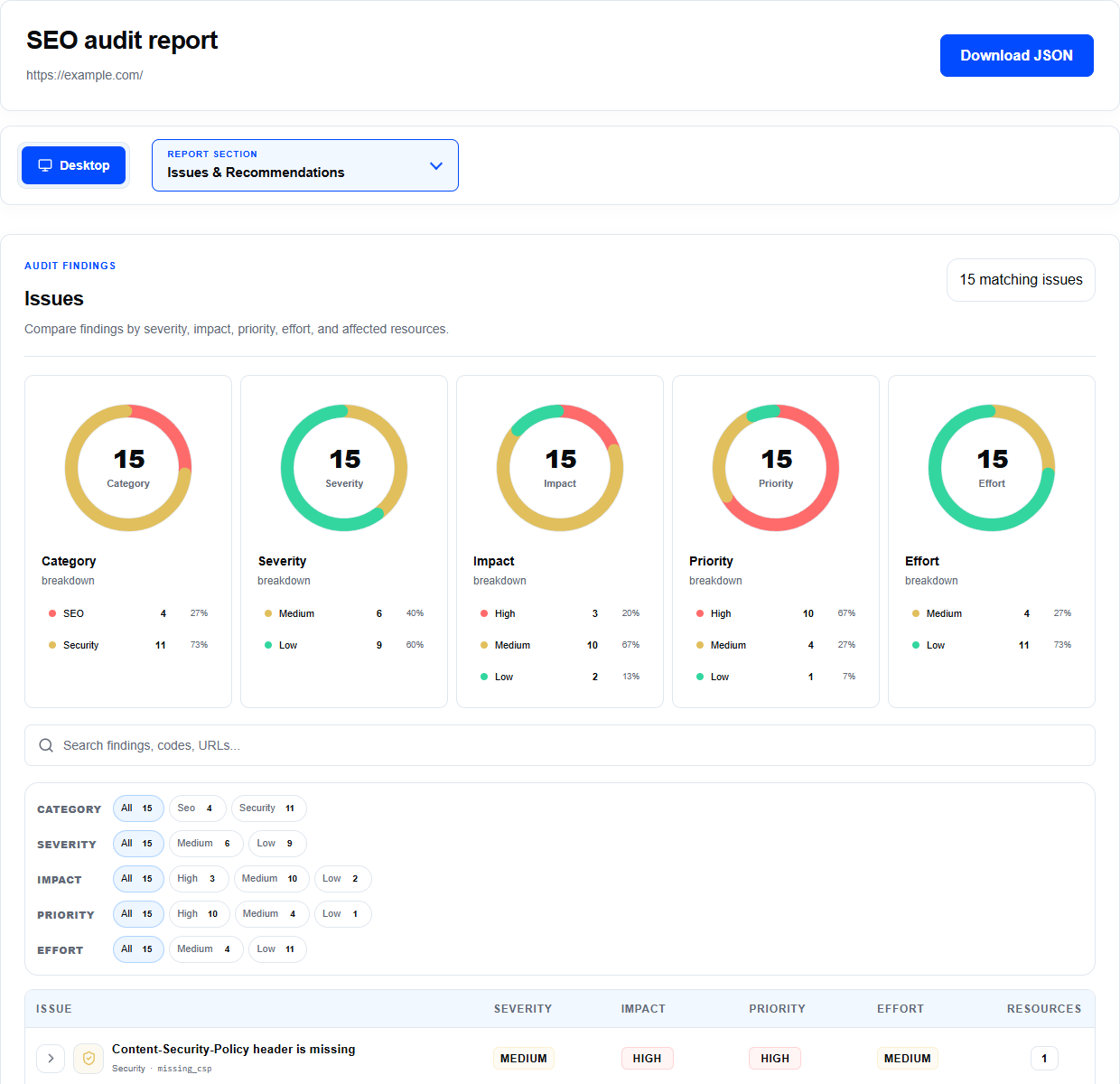
- Open the Report section menu and choose Issues & Recommendations. This run lists 15 findings: six Medium and nine Low by severity.
- Use Search findings or the Category, Severity, Impact, Priority and Effort filters to narrow the list. Clear the search and filters when you want to see the full set again.
- Expand a finding to read its recommended action and affected resources. The resource may be a URL, page element, response header or captured observation. Compare it with the current page before assigning work.
Example: review a link warning in context
The report includes Links use vague anchor text, with code vague_anchor_text and Low severity. Its affected resources identify the text Learn more and destination https://iana.org/help/example-domains.
Find that link on the page, read the surrounding paragraph and open the destination. Decide whether the wording gives readers enough context and whether a more descriptive label would help. The useful action comes from that check; changing text only to move a score leaves the original question unanswered.
Keep the result for comparison
Use Download JSON to keep the full response. Record the URL, selected devices, time, finding code and affected resource with your notes. Keep confidential findings out of public screenshots or support messages.
Compare a change fairly
- Apply changes on a site you control, then use the same URL and device selection for the next request.
- Inspect the specific diagnostic and resource again. A higher overall score alone does not show whether the intended repair worked.
- Record changes and request times. Loading conditions, cached responses and later page edits can affect the comparison.
Know the limits
One URL audit does not cover every page, user journey or security concern. Treat absent device results and unavailable measurements as missing evidence. Scores do not establish search rankings, accessibility conformance or security. Findings need review against the current page.
When a request does not finish
A service error is different from a completed report containing warnings. First check the public URL and displayed message. Follow Troubleshoot a website analysis to check the input, retrieval and service response.
Earlier service-error example
The screenshot below was captured during an earlier failed Desktop request. The completed walkthrough above shows the working service; this older image explains how a failure is presented. No report or score was returned for that earlier request.
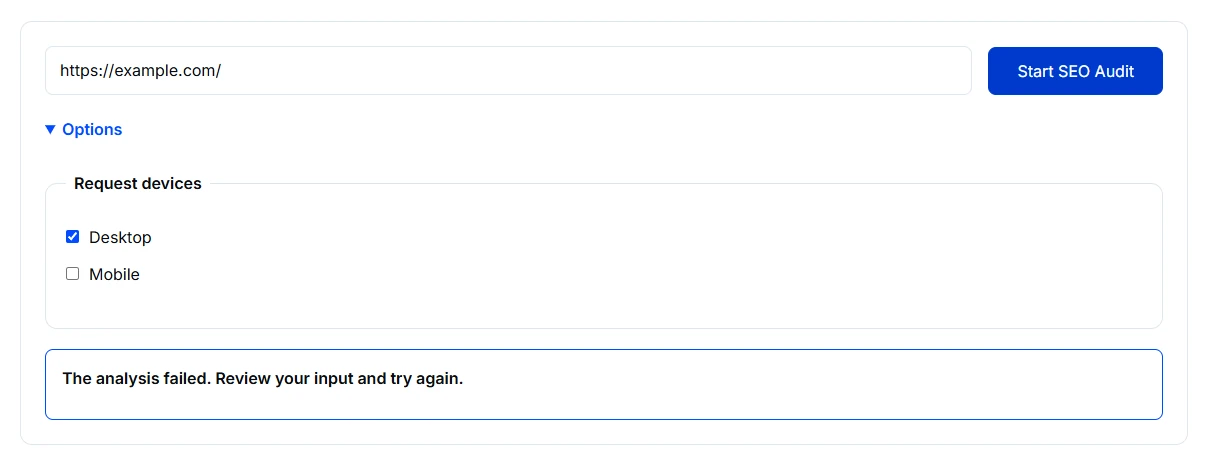
If a retry also fails, contact us with the tool name, public URL, requested devices, time and exact message. A missing report does not mean the page scored zero or failed every check.